iCloud Privacy: Explained
Introduction
Apple’s iCloud has become the default cloud for millions of users, syncing photos, contacts, documents, and even health data across devices. Yet the convenience of seamless backup raises a pressing question: how safe is the data that lives in Apple’s servers? iCloud privacy explained begins with a clear definition of the security layers Apple uses, from end‑to‑end encryption to two‑factor authentication, and then dives into the settings that let users control what is shared. Understanding these mechanisms is essential for anyone who stores sensitive information in the cloud, whether it’s a personal diary or corporate documents. Apple’s approach balances user privacy with functionality, but it also requires users to be proactive. This guide will walk you through the core protections, how to enable them, and practical steps to keep your data out of unwanted hands. By the end, you’ll know exactly what Apple does to safeguard your information and what you can do to strengthen that protection.
How Apple Secures iCloud Data
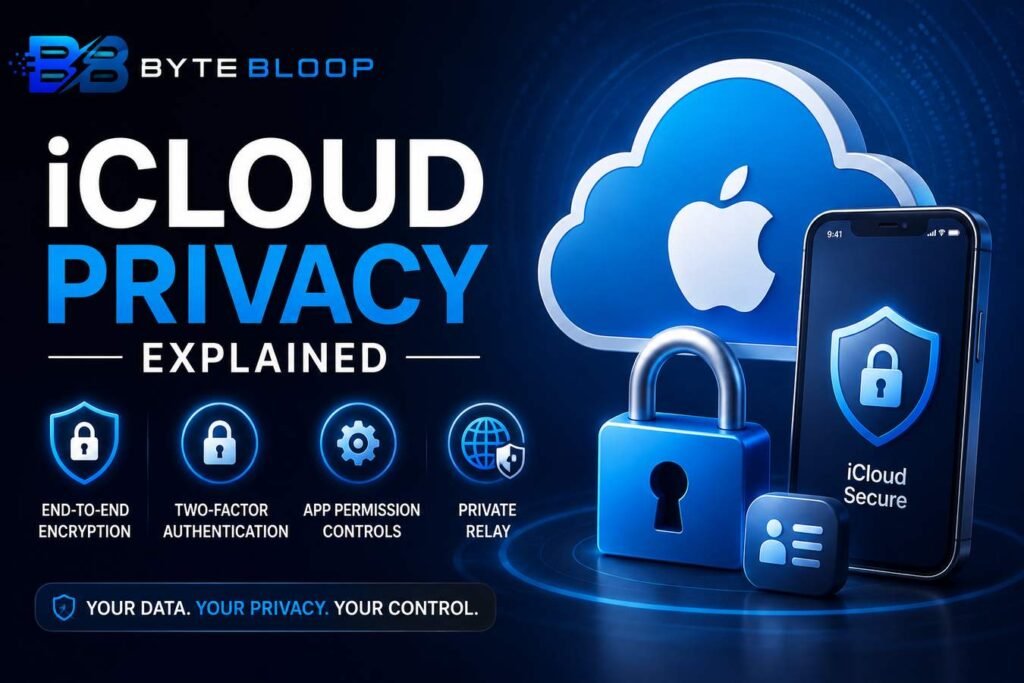
Apple’s privacy strategy relies on two main pillars: encryption and access control. For the 15 key data categories—such as Health, passwords stored in iCloud Keychain, and Photos—Apple uses end‑to‑end encryption. This means the data is scrambled on your device before it leaves, and only the device that owns the data can decrypt it. Even Apple’s own servers cannot read the contents. Health data and Keychain passwords are among the most sensitive, and Apple guarantees they remain private unless you explicitly share them with another device or user.
Beyond encryption, Apple implements strict access controls. The Apple ID password and a separate two‑factor authentication code are required to access iCloud from a new device. If you enable Find My iPhone and Two‑Step Verification, an attacker would need both your password and a code sent to a trusted device to compromise your account.
Managing What You Share
Apple’s Privacy & Security settings give you granular control over which apps and services can access your iCloud data. In Settings > Privacy & Security, you’ll see a list of data types—Contacts, Calendars, Photos, Health, etc.—and the apps that request access. You can toggle permissions on a per‑app basis, ensuring that only trusted applications can read or write your data. For example, if you install a new photo‑editing app, you can decide whether it can access your entire photo library or just the images you explicitly select.
For users who want maximum privacy, Apple offers the Private Relay feature (available on iCloud+ plans). Private Relay masks your IP address and encrypts DNS queries, preventing ISPs and Apple from tracking your browsing habits. While it doesn’t protect the content of your emails or documents, it adds an extra layer of anonymity for everyday web use.
Best Practices for iCloud Privacy
1. Use a strong, unique Apple ID password. Avoid reusing passwords from other services.
2. Enable two‑factor authentication. Even if someone obtains your password, they still need the second factor.
3. Review app permissions regularly. Go to Settings > Privacy & Security and audit which apps have access to Health, Photos, and other sensitive data.
4. Turn on Private Relay if you’re on an iCloud+ plan. This keeps your browsing private from Apple and third parties.
5. Use iCloud Keychain only for passwords you trust. Consider using a dedicated password manager for highly sensitive accounts.
6. Keep your devices updated. Security patches often close vulnerabilities that could expose iCloud data.
Common Misconceptions
Many users believe that iCloud is “unhackable.” While Apple’s security model is robust, no system is immune. Phishing attacks, social engineering, and compromised devices can still expose your Apple ID. It’s also important to note that while data is encrypted in transit and at rest, the metadata—such as file names and timestamps—can still be visible to Apple.
Another myth is that disabling iCloud sync will automatically erase data from Apple’s servers. In reality, disabling sync stops new data from uploading, but existing data remains on the servers until you delete it manually or use the “Delete from My iPhone” option.
Key Takeaways
- Apple uses end‑to‑end encryption for 15 key data categories
- Two‑factor authentication is essential for account security
- Granular app‑level permissions let you control data access
- Private Relay adds anonymity to your browsing on iCloud+
- Regularly audit permissions and keep devices updated
Frequently Asked Questions
What is iCloud privacy explained?
It refers to Apple’s methods for protecting user data stored in iCloud, including encryption, access controls, and user‑controlled permissions.
What are the key features of iCloud privacy?
End‑to‑end encryption for sensitive data, two‑factor authentication, granular app permissions, and optional Private Relay for browsing anonymity.
What are the best use cases for iCloud privacy settings?
Managing photo libraries, health data, and passwords, and protecting sensitive documents when sharing across devices.
What are the pros and cons of using iCloud for privacy?
Pros: strong encryption, seamless device sync, and user‑friendly controls. Cons: metadata exposure, reliance on Apple’s ecosystem, and potential vulnerability to phishing.
Conclusion
Based on the available information and industry analysis, iCloud privacy provides a robust framework that balances user convenience with strong security measures. By leveraging end‑to‑end encryption, two‑factor authentication, and granular permission controls, users can confidently store sensitive data in the cloud while maintaining control over who accesses it. However, vigilance remains essential—regularly reviewing permissions, using strong passwords, and staying updated on security best practices are key to maximizing protection. Ultimately, iCloud privacy empowers users to enjoy the benefits of cloud storage without compromising personal data integrity.
Related Reading
- Understanding Two‑Factor Authentication on Apple Devices