How to Install Node.js: Step-by-Step Guide
Introduction
Node.js powers the backend of many modern web applications, from real‑time chat to API servers. It bundles the V8 JavaScript engine with a rich library of modules, enabling developers to write server‑side code in JavaScript. Whether you’re a hobbyist building a small project or a professional setting up a production environment, having Node.js installed correctly is the first step to a smooth workflow. The installation process varies slightly across operating systems, but the core steps—download, run the installer, and verify—are consistent. In this guide, we walk through the most common methods for Windows, macOS, and Linux, covering both official installers and version managers for flexible development setups. By the end, you’ll know how to get Node.js up and running on your machine and how to keep it updated for future projects.
Installing Node.js on Windows 11
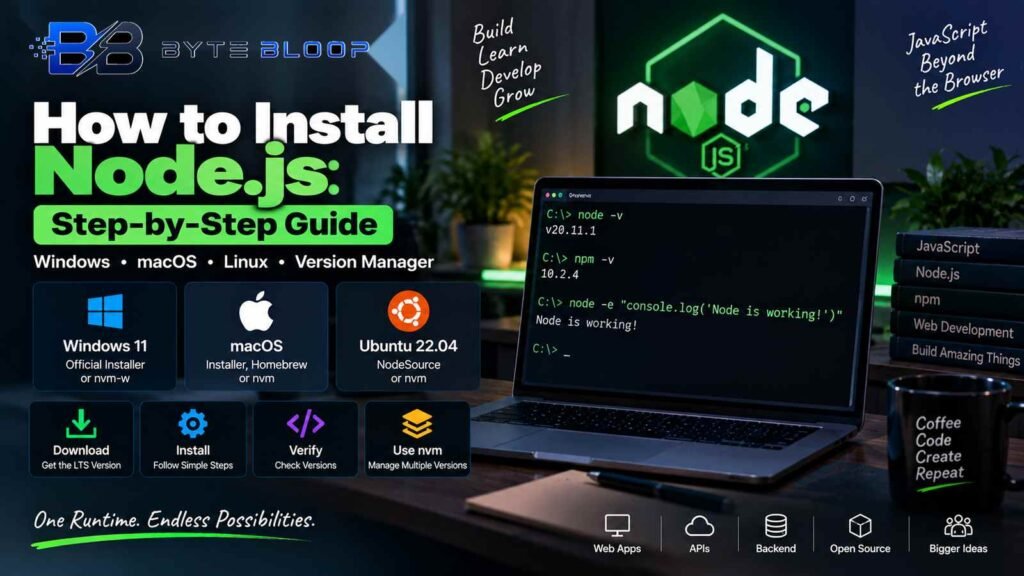
Windows users can install Node.js via the official MSI installer. Visit the Node.js website and download the latest LTS version for Windows (64‑bit). Run the installer, accept the license, and choose the default options—this includes npm, the Node package manager. After installation, open PowerShell or Command Prompt and type node -v and npm -v to confirm the versions. If you prefer a lightweight setup, you can use the Node Version Manager for Windows (nvm‑w) to switch between multiple Node releases.
Installing Node.js on macOS
macOS users have two popular options: the official installer or Homebrew. The installer is a simple .pkg file that sets up Node and npm automatically. For developers who value version control, Homebrew provides a command‑line approach: brew install node. After installation, verify with node -v and npm -v. If you need to manage several Node versions, consider nvm (Node Version Manager) by running curl -o- https://raw.githubusercontent.com/nvm-sh/nvm/v0.39.3/install.sh | bash and then installing the desired Node release with nvm install --lts.
Installing Node.js on Linux (Ubuntu 22.04)
Linux distributions often ship Node.js in their package repositories, but the versions may lag behind the latest LTS. For Ubuntu 22.04, the recommended path is to use NodeSource or nvm. Using NodeSource, run:
curl -fsSL https://deb.nodesource.com/setup_lts.x | sudo -E bash -
sudo apt-get install -y nodejs
For nvm, follow the same installation script as on macOS and then install Node with nvm install --lts. After installation, check the versions with node -v and npm -v. These steps ensure you’re running a supported LTS release, which is ideal for production environments.
Choosing a Version Manager
While the official installers are straightforward, they lock you into a single Node version. Version managers like nvm, nvm‑w, or fnm let you install and switch between multiple releases quickly. This is especially useful when working on projects that depend on different Node versions or when testing new features. To install nvm on any platform, use the curl script from the nvm repository and then install the desired Node release. Once set up, you can switch versions with nvm use 18 or nvm use 20, depending on your needs.
Verifying the Installation
After installing Node.js, the most reliable verification method is to run node -v and npm -v in your terminal. The output should display the current Node and npm versions. You can also run a simple test script:
node -e "console.log('Node is working!')"
If you see the expected output, Node.js is correctly installed. For further validation, create a small app.js file that starts an HTTP server and ensure it listens on a port.
Key Takeaways
- Node.js is available for Windows, macOS, and Linux via official installers or package managers.
- The LTS (Long Term Support) release is recommended for most production projects.
- Version managers like nvm provide flexibility to switch between Node releases easily.
- Verifying installation with <code>node -v</code> and <code>npm -v</code> confirms a successful setup.
- Using Homebrew on macOS or NodeSource on Ubuntu ensures you get the latest LTS version.
Conclusion
Based on the available information, this topic provides essential insights for readers looking to understand the core concepts and practical applications.