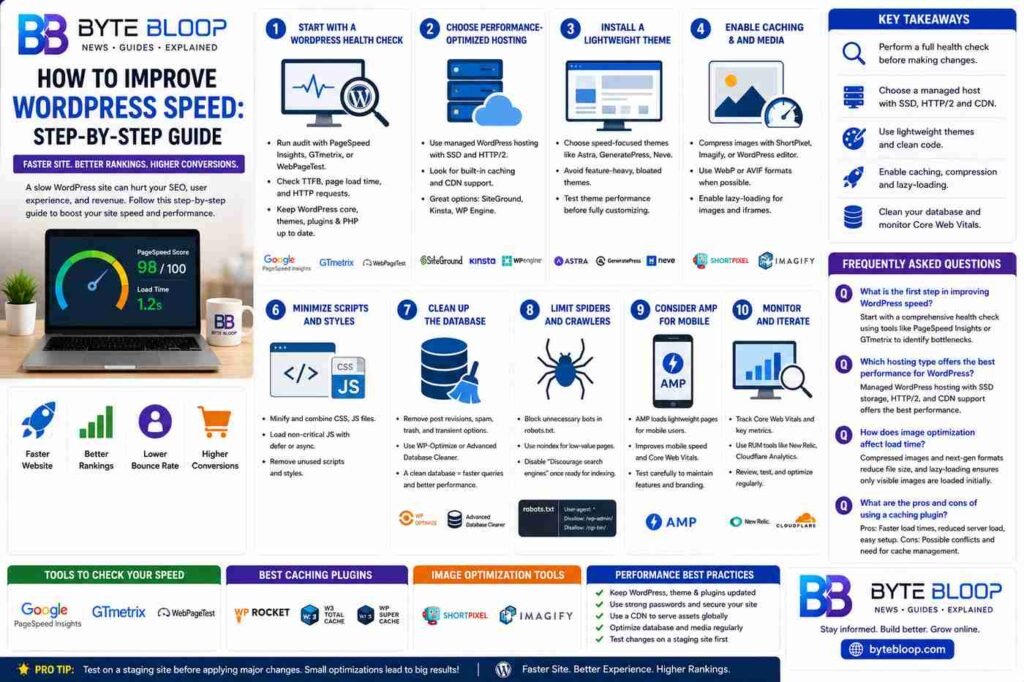
How to Improve WordPress Speed: Step-by-Step Guide
Introduction
WordPress powers more than 40% of the web, yet many sites still suffer from sluggish load times. Speed is not just a vanity metric; it drives SEO rankings, reduces bounce rates, and increases conversion rates. A slow site can cost a business thousands in lost revenue each year. The good news is that performance can be dramatically improved with a systematic, step‑by‑step approach. This guide walks you through every essential layer—from the server to the front‑end—so you can implement proven tactics that deliver measurable results. By the end, you’ll have a clear roadmap for diagnosing bottlenecks, selecting the right tools, and fine‑tuning your WordPress environment for optimal speed.
1. Start With a WordPress Health Check
Before tweaking settings, run a comprehensive audit to identify the root causes of slowness. Use tools like Google PageSpeed Insights, GTmetrix, or WebPageTest to capture baseline metrics. Pay attention to page load time, Time to First Byte (TTFB), and the number of HTTP requests. A healthy WordPress core—up‑to‑date plugins, themes, and PHP version—forms the foundation for all subsequent optimizations.
2. Choose Performance‑Optimized Hosting
Hosting is the single most influential factor in WordPress speed. Shared hosting often shares resources with dozens of sites, leading to unpredictable performance spikes. Opt for a managed WordPress host that offers SSD storage, HTTP/2 support, and automatic caching. Providers like SiteGround, Kinsta, or WP Engine are known for their fast, secure environments. If you run a high‑traffic blog, consider a dedicated or VPS plan with a content‑delivery network (CDN) to serve static assets from edge servers worldwide.
3. Install a Lightweight Theme
Theme bloat can double page size and add unnecessary scripts. Choose a theme built for speed—such as Astra, GeneratePress, or Neve—rather than a feature‑rich, all‑in‑one solution. Test the theme’s performance with the same diagnostic tools used earlier. Remember, a simple, clean design not only loads faster but also improves readability and user engagement.
4. Enable Caching and Compression
Caching reduces the number of database queries and server processing time. Install a reputable caching plugin like WP Rocket, W3 Total Cache, or the free WP Super Cache. Configure page caching, browser caching, and GZIP compression. GZIP shrinks file sizes by up to 70%, while browser caching lets returning visitors load content from their local cache, cutting round‑trip times.
5. Optimize Images and Media
Images are often the largest assets on a page. Use automated tools such as ShortPixel, Imagify, or the built‑in WordPress image editor to compress JPEGs and PNGs without visible quality loss. Serve images in next‑gen formats like WebP or AVIF when supported. Lazy‑load off‑screen images so the browser only fetches them when the user scrolls, reducing initial payload.
6. Minimize Scripts and Styles
Each CSS and JavaScript file adds an HTTP request and parsing time. Combine files where possible, and remove unused code. Use the “defer” attribute for non‑critical scripts to allow HTML parsing to continue. Plugins that enqueue scripts globally can be culled; only load scripts on the pages that need them.
7. Clean Up the Database
Over time, WordPress databases accumulate post revisions, spam comments, and transient options. Use a plugin like WP‑Optimize or Advanced Database Cleaner to prune old data. A lean database reduces query time, especially for complex pages that rely on metadata.
8. Limit Spiders and Crawlers
Search engine bots can consume server resources, especially on large sites. Configure robots.txt to block non‑essential directories and use the “noindex” meta tag on low‑value pages. In WordPress, the “Discourage search engines” setting can be toggled off once the site is ready for indexing.
9. Consider AMP for Mobile
Accelerated Mobile Pages (AMP) strip away heavy scripts and render a lightweight version of your page. If mobile traffic dominates, AMP can shave milliseconds off load times. However, test thoroughly to ensure that AMP pages retain essential functionality and branding.
10. Monitor and Iterate
Performance is an ongoing process. Schedule monthly audits, track key metrics like Core Web Vitals, and adjust settings as traffic patterns shift. Use real‑user monitoring (RUM) tools like New Relic or Cloudflare Analytics to see how visitors experience your site across devices and locations.
Key Takeaways
- Perform a full health check before making changes.
- Choose a managed host with SSD, HTTP/2, and CDN support.
- Use lightweight themes and enable caching, compression, and lazy‑loading.
- Regularly clean the database and monitor Core Web Vitals.
Frequently Asked Questions
What is the first step in improving WordPress speed?
Start with a comprehensive health check using tools like PageSpeed Insights or GTmetrix to identify bottlenecks.
Which hosting type offers the best performance for WordPress?
Managed WordPress hosting with SSD storage, HTTP/2, and optional CDN delivers the fastest results.
How does image optimization affect load time?
Compressed images and next‑gen formats reduce file size, while lazy‑loading ensures only visible images are fetched immediately.
What are the pros and cons of using a caching plugin?
Pros: significant speed gains, easier configuration. Cons: potential plugin conflicts and the need for occasional manual cache purges.
Conclusion
Based on the available information and industry analysis, improving WordPress speed is a multi‑layered process that begins with a health check, continues through hosting and theme selection, and culminates in caching, media optimization, and ongoing monitoring. By systematically applying these steps, site owners can achieve faster load times, better SEO rankings, and higher user satisfaction, translating directly into improved engagement and revenue.
Related Reading
- Top 10 WordPress Plugins for Performance
- How to Set Up a CDN for Your WordPress Site



