Screenshot Apps Explained: 10 Useful Tools, Features & App Store Tips in 2026
Introduction
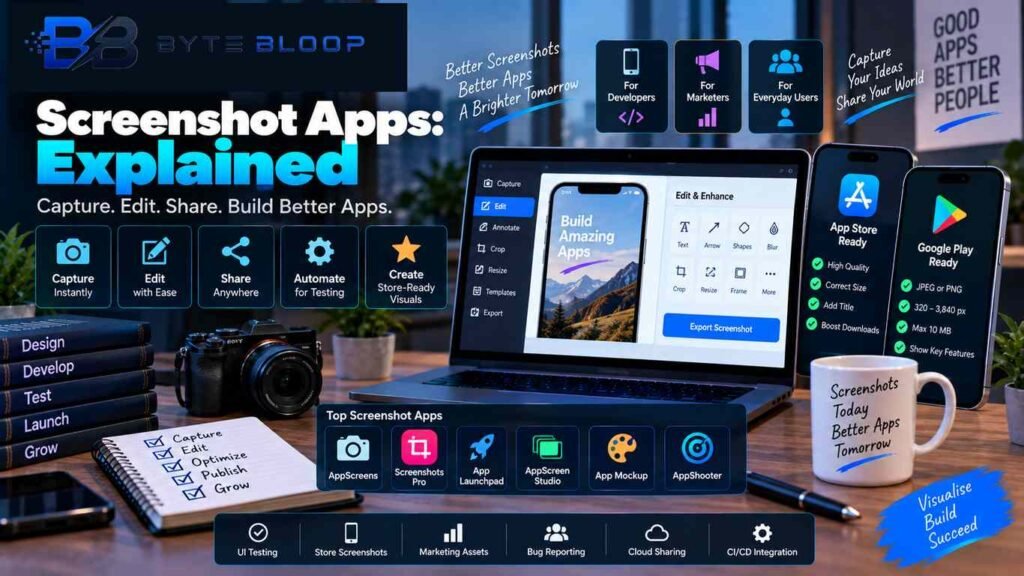
Screenshot apps explained in simple terms, these are applications and tools designed to capture the contents of a device screen and, in many cases, edit, annotate, organize, or transform those captures into shareable visual assets.
A basic screenshot tool may simply capture the current display. More advanced software can capture scrolling webpages, add annotations, place screenshots inside device frames, create App Store and Google Play marketing graphics, localize screenshot sets, or integrate screenshot generation into a development workflow.
For developers, screenshots can document bugs, demonstrate features, create app-store listings, and support UI testing. For marketers, they can explain an app’s value before a user installs it. For ordinary users, screenshots remain a fast way to save information, communicate problems, or share something from a phone or computer.
The requirements also vary between platforms. Apple App Store Connect currently allows between one and ten screenshots per supported device size and provides different accepted dimensions for iPhone, iPad, Mac, Apple TV, Apple Vision Pro, and Apple Watch.
Google Play currently requires at least two screenshots across different device types for a store listing, with screenshots supplied as JPEG or 24-bit PNG and dimensions between 320 px and 3840 px, subject to the platform’s aspect-ratio rule.
This guide explains screenshot apps, manual capture tools, screenshot generators, app-store requirements, automated testing, workflow integration, common mistakes, and practical ways to create better screenshot assets in 2026.
What Is a Screenshot App?
A screenshot app is software that captures what is displayed on a device screen.
Depending on the tool, it may also provide features such as:
- Screen capture
- Scrolling screenshots
- Image cropping
- Annotations
- Text and arrows
- Sharing
- Cloud storage
- Device mockups
- App-store templates
- Batch export
- Localization
- Automated screenshot generation
Some screenshot tools are standalone mobile applications, while others are desktop applications or browser-based services.
Types of Screenshot Tools
Not every screenshot tool is designed for the same job.
Basic Screenshot Tools
These focus on capturing the current display.
They are useful for:
- Saving information
- Reporting bugs
- Sharing screens
- Creating documentation
Scrolling Screenshot Tools
These can capture content that extends beyond a single screen.
Typical examples include:
- Long webpages
- Articles
- Chats
- Documents
- Social-media pages
Screenshot Editors
These add editing features such as:
- Cropping
- Highlighting
- Blurring
- Text
- Arrows
- Shapes
App-Store Screenshot Generators
These tools take raw app screenshots and turn them into polished store assets using:
- Device frames
- Backgrounds
- Headlines
- Captions
- Layout templates
- Multiple device sizes
Automated Screenshot Tools
These are designed for developers and QA teams.
They can capture application screens automatically during builds or tests and compare results with expected images.
Why Screenshot Apps Matter in 2026
Screenshots can influence how users understand an application before they install it.
A well-designed screenshot set can communicate:
- What the app does
- Who it is for
- Which features matter
- What the interface looks like
- Why someone might install it
Google Play recommends that store-listing images accurately reflect the functionality of the app and not contain misleading information.
The same principle applies to Apple store assets: screenshots are intended to visually communicate the app’s experience.
For developers, screenshots have another purpose: they can serve as development evidence.
A screenshot can document:
- A completed feature
- A UI bug
- A test failure
- A layout change
- A release candidate
For larger development teams, automated capture can make this process repeatable.
Screenshot Apps for Everyday Users
Everyday users often need something simpler than a full design platform.
Screenshot Touch
Screenshot Touch is an Android screenshot utility available through Google Play.
Its current listing says it supports:
- Floating capture controls
- Touch-based capture
- Editing and sharing
- Full-page webpage capture
- Scrolling capture
- Screen recording
- Image stitching
The Google Play listing was updated on August 28, 2026.
It can therefore be useful for users who need more functionality than a device’s built-in screenshot shortcut.
Screenshot Apps for Developers
Developers often need two different categories of tools:
capture tools for getting raw images and design tools for turning those images into store-ready assets.
AppScreens
AppScreens is an app-store screenshot generator focused on Apple App Store and Google Play assets.
Its current platform provides:
- Screenshot templates
- Device-specific layouts
- App Store and Play Store exports
- Localization
- Responsive layouts
- Optional AI-generated captions
- Direct store-upload workflows
AppScreens says its system can adapt one design across device sizes and languages rather than requiring each screenshot canvas to be rebuilt manually.
Launch Shots
Launch Shots is another current screenshot-generation platform designed for App Store and Google Play assets.
Its current feature set includes:
- Screenshot generation
- Headlines
- Templates
- Store publishing
- App-store performance tracking
The service says it can create several design directions from existing screenshots and supports direct publishing workflows.
Screenshot Studio
Screenshot Studio provides a browser-based editor for creating app-store screenshots.
Its current tool offers:
- Device frames
- Backgrounds
- Typography controls
- PNG and JPG export
- Batch export
- App Store and Play Store presets
The service states that the editor runs in the browser and does not require account creation for its basic workflow.
App Store Screenshot Tools vs Screenshot Capture Apps
These categories are easy to confuse.
A capture app answers:
“How do I capture my screen?”
An app-store screenshot generator answers:
“How do I turn my raw capture into a professional store asset?”
For example:
Raw iPhone capture → Device frame → Marketing headline → Background → Export
A developer might therefore use the built-in device screenshot function first and then use a screenshot generator for the final store listing.
Apple App Store Screenshot Requirements in 2026
Apple’s current App Store Connect documentation says developers can upload between one and ten screenshots for supported device platforms. Accepted formats include .jpeg, .jpg, and .png, and images cannot include alpha channels or transparency.
The required dimensions depend on the Apple device.
For example, Apple’s current documentation lists multiple accepted screenshot sizes for different iPhone display classes, including current 6.9-inch, 6.3-inch, 6.1-inch, and other device groups.
This means developers should not use one generic size and assume it works for every Apple platform.
Apple Screenshot Workflow
A practical workflow is:
- Capture the app on a supported device or simulator.
- Remove unnecessary UI artifacts.
- Export at an accepted resolution.
- Add marketing design elements if desired.
- Check the final dimensions.
- Upload to App Store Connect.
Apple says that when the same interface is used across device sizes, developers can provide the highest-resolution screenshots required and allow them to scale to smaller supported sizes.
Google Play Screenshot Requirements in 2026
Google Play currently requires at least two screenshots across different device types to publish a store listing. Screenshots must be JPEG or 24-bit PNG without alpha, with a minimum dimension of 320 px and maximum dimension of 3840 px. Google also specifies that the maximum dimension cannot exceed twice the minimum dimension.
Google recommends providing at least four screenshots at 1080 px or higher for some large-format recommendation surfaces, with landscape assets using a 16:9 ratio and portrait assets using 9:16.
Google Play Screenshot Workflow
A practical workflow is:
- Capture the application.
- Choose the correct device orientation.
- Prepare the screenshots at valid dimensions.
- Keep important UI information visible.
- Make sure the screenshots accurately represent the app.
- Upload them in Play Console.
Google specifically says screenshots and other store-listing information should accurately represent what the app actually does. Misleading screenshots or claims can create policy problems.
How to Create Professional App Store Screenshots
A professional screenshot set should communicate information quickly.
Show the Product
The actual application interface should remain visible.
Avoid hiding the main experience beneath excessive decoration.
Use Clear Headlines
A short headline can explain the value of the screen.
For example:
Track Your Daily Progress
is easier to understand than:
Advanced Next-Generation Personal Productivity Platform
Keep Text Readable
Screenshots appear on different screen sizes, so tiny text may become difficult to read.
Use Consistent Design
Keep:
- Font styles
- Spacing
- Colors
- Device frames
- Headline placement
consistent across the set.
Highlight Different Features
Instead of repeating the same screen, each screenshot can communicate a different capability.
For example:
- Main dashboard
- Key feature
- Search
- Personalization
- Sharing
- Results
Screenshot Storytelling
A screenshot set can work like a visual story.
Screenshot 1: Main Value
Explain what the app does.
Screenshot 2: Key Feature
Show the most important capability.
Screenshot 3: Ease of Use
Demonstrate a simple workflow.
Screenshot 4: Results
Show the output users care about.
Screenshot 5: Supporting Features
Introduce secondary features.
The exact order should depend on the app rather than following a universal template.
Screenshot Apps and Accessibility
Visual assets should remain readable and understandable.
Consider:
- Strong text contrast
- Sufficient font size
- Clear hierarchy
- Avoiding unnecessary visual clutter
- Meaningful labels
Google Play recommends making store graphics easy to understand and keeping important visual elements toward the center so they scale across different screen sizes.
The same general principle is useful when designing screenshot assets for other stores.
Automated Screenshot Testing
Screenshot generation and screenshot testing are not the same thing.
Screenshot Generation
Creates images for:
- App stores
- Marketing
- Documentation
- Presentations
Screenshot Testing
Captures an application’s interface during development and compares it against an expected image or baseline.
This can help identify visual changes such as:
- Incorrect spacing
- Missing elements
- Font changes
- Layout shifts
- Color changes
- Broken components
Visual Regression Testing
Visual regression testing compares a newly generated screenshot against a reference image.
For example:
Baseline screenshot
versus
New build screenshot
Software can compare the images and identify significant differences.
This can help development teams catch UI regressions before release.
Why It Helps
Some interface problems are difficult to detect through functional tests alone.
A button might still work while:
- Moving out of position
- Becoming too small
- Overlapping another component
- Losing contrast
- Disappearing on one screen size
Visual testing can help reveal these changes.
Screenshot Automation in CI/CD
Development teams can integrate screenshot capture into automated pipelines.
A basic workflow might look like:
Code change → Build → Launch app → Run test → Capture screenshot → Compare baseline → Report differences
This can be useful when an application has many screens or is updated frequently.
The exact implementation depends on the framework and testing tools used by the development team.
Screenshot Apps for Bug Reporting
Screenshots are also useful for bug reports.
A useful bug screenshot should show:
- The affected screen
- Relevant UI state
- Error message
- Visible navigation context
Developers may also need:
- Device model
- Operating system
- App version
- Steps to reproduce
A screenshot alone does not always contain enough information to reproduce a problem.
Capturing Long Web Pages
Some screenshot tools support scrolling capture.
This can be useful when a single viewport does not contain the entire page.
Examples include:
- Documentation
- Articles
- Tutorials
- Web dashboards
- Long conversations
Screenshot Touch currently supports full-page webpage capture through its in-app browser and can stitch multiple images together.
Screenshot Editing Features
Modern screenshot tools can include several editing capabilities.
Cropping
Remove unnecessary areas.
Annotation
Add:
- Arrows
- Boxes
- Circles
- Text
Blur
Hide sensitive information such as:
- Email addresses
- Phone numbers
- Account numbers
- Private messages
Device Frames
Place a mobile screenshot inside a realistic phone or tablet frame.
Backgrounds
Add a simple or branded background.
Marketing Headlines
Add concise text that explains the value of the feature being shown.
AI-Powered Screenshot Generation
AI is increasingly being used to accelerate screenshot design.
Modern services can generate:
- Headlines
- Layout variations
- Device frames
- Screenshot compositions
- Localized captions
For example, AppScreens currently offers optional AI-generated captions and responsive layouts for multiple device formats and languages.
AI can speed up the creative process, but the final assets should still be reviewed manually.
Generated text may contain:
- Incorrect feature descriptions
- Unsupported claims
- Awkward wording
- Incorrect localization
- Misleading promises
Google Play’s current metadata guidance requires screenshots and promotional material to accurately reflect the app.
Screenshot Localization
Apps distributed globally may need screenshots in multiple languages.
Localization can involve:
- Text
- Headlines
- UI language
- Device layouts
- Currency
- Cultural references
Manually creating every variation can become time-consuming.
Tools such as AppScreens currently advertise multi-language screenshot workflows and support for 80+ languages, including RTL layouts.
Regardless of the tool, localized screenshots should be reviewed by someone who understands the target language and market.
Screenshot Apps and App Store Optimization
Screenshots are part of a broader App Store Optimization strategy.
ASO can include:
- App title
- Subtitle
- Description
- Keywords
- Icon
- Screenshots
- App preview video
- Ratings and reviews
Screenshots should therefore support the same message communicated by the rest of the store listing.
Avoid making claims in screenshots that the app itself cannot deliver.
Google Play explicitly warns against misleading metadata and requires store visuals to accurately reflect app functionality.
Common Screenshot Mistakes
Using the Wrong Resolution
Incorrect dimensions can prevent assets from being accepted or produce unnecessary scaling.
Tiny Text
Users may not be able to read promotional captions on smaller screens.
Too Much Text
Screenshots should communicate quickly.
Misleading Images
Do not show a feature or interface that users will not actually receive.
Google Play specifically states that screenshots should accurately reflect the app’s actual experience.
Outdated Device Frames
Using old hardware imagery can make a listing look inconsistent with the actual product.
Inconsistent Design
Different fonts, colors, spacing, or layouts can make the screenshot set look disconnected.
Ignoring Localization
Text that works in one language may break when translated into another.
Forgetting Accessibility
Poor contrast and tiny text can make screenshots difficult to understand.
Screenshot Workflow for Developers
A repeatable workflow can reduce manual work.
Step 1: Capture Real App Screens
Use a device or simulator.
Step 2: Select Important Screens
Choose screens that communicate actual user value.
Step 3: Remove Sensitive Data
Hide passwords, personal information, API keys, internal URLs, and other confidential content.
Step 4: Design the Screenshot Set
Choose:
- Device frame
- Background
- Headline
- Supporting text
Step 5: Create Platform Variants
Prepare the required Apple and Google Play formats.
Step 6: Review
Check:
- Dimensions
- Text
- UI accuracy
- Localization
- Contrast
- Alignment
Step 7: Upload
Submit the appropriate assets to the store.
Step 8: Update When the Product Changes
Screenshots should stay consistent with the current application experience.
Screenshot Workflow for QA Teams
QA teams can use screenshots differently.
A basic process can be:
Test case → Open screen → Capture → Compare → Report
For visual regression:
Build → Automated test → Screenshot → Baseline comparison → Failure report
This can be especially useful for applications with many device sizes.
Best Screenshot Tools in 2026
There is no universal best screenshot tool because different tools solve different problems.
AppScreens
Best suited to teams creating complete App Store and Google Play screenshot sets, with templates, localization, responsive output, and publishing workflows.
Website:
https://appscreens.com/
Launch Shots
Useful for teams that want screenshot generation combined with store publishing and performance-oriented workflows.
Website:
https://www.launchshots.com/
Screenshot Studio
Useful for browser-based screenshot design with device frames, backgrounds, typography, and exports.
Website:
https://screenshotgenerator.app/
Screenshot Touch
Useful for Android users who want direct capture, scrolling capture, editing, sharing, and screen recording.
Google Play:
https://play.google.com/store/apps/details?id=com.mdiwebma.screenshot
Choosing the Right Screenshot App
Think about your actual requirement.
For Simple Phone Screenshots
Use the device’s built-in screenshot function or a lightweight utility.
For Long Web Pages
Choose a tool with scrolling capture.
For App Store Marketing Assets
Use a screenshot generator with platform-specific templates and exports.
For QA
Choose tools that support automated capture and visual comparison.
For Global App Launches
Look for localization and multiple device-size support.
For Small Teams
A browser-based generator can reduce the need for advanced design software.
Screenshot Apps vs Built-In Capture
Built-in capture is usually sufficient when you only need a raw screenshot.
Dedicated tools become more useful when you need:
- Scrolling capture
- Annotations
- Device mockups
- Batch processing
- Store-specific exports
- Localization
- Automation
The right choice depends on the complexity of the workflow.
Screenshot Security and Privacy
Screenshots can accidentally expose sensitive information.
Before sharing or uploading a screenshot, check for:
- Passwords
- Email addresses
- Phone numbers
- Customer records
- API tokens
- Internal URLs
- Financial data
- Private conversations
Blur or remove sensitive information where necessary.
For websites and applications handling personal data, screenshot workflows should also be included in broader privacy and security procedures.
For another ByteBloop security guide, read:
Web Application Security Explained
Screenshot Apps for Developers Using AI
AI developer tools can create code, tests, and documentation, while screenshot tools can help visualize the resulting interface.
For example:
AI-assisted coding → Build UI → Capture screen → Create store asset → Review
ByteBloop’s AI for Developers Explained covers current AI-assisted coding workflows, while screenshot tools can be used for documenting the resulting applications.
This combination can be useful for independent developers who handle development, QA, and marketing themselves.
Screenshot Asset Management
Large projects can generate hundreds of screenshot files.
A consistent naming structure can help.
For example:
app-home-iphone.png
app-search-iphone.png
app-dashboard-ipad.png
app-home-android.png
It can also be useful to maintain folders for:
- Raw captures
- Edited assets
- Final exports
- Localized versions
- Archived releases
Google Play currently provides an Asset Library for organizing and reusing store graphics across listings, experiments, and events.
Keeping Screenshot Sets Updated
Screenshots should be reviewed whenever the application changes significantly.
Update them after:
- Major UI redesigns
- New features
- New navigation
- Device-layout changes
- Branding updates
- Important localization changes
A store screenshot that shows an interface users no longer see can create confusion and may conflict with platform expectations around accurate store metadata.
Screenshot Apps in 2026
Screenshot tooling in 2026 is becoming more than simple screen capture.
Current services increasingly combine:
- Screenshot generation
- Device frames
- AI-generated captions
- Localization
- Store-specific dimensions
- Automated export
- Store publishing
- Asset management
AppScreens currently advertises responsive multi-device layouts, localization, and direct uploads to Apple and Google stores.
Google Play has also expanded its own asset management capabilities through the Asset Library, allowing developers to manage and reuse screenshots and other graphics across different store surfaces.
Apple continues to update its screenshot specifications as new device classes are introduced. Its September 2026 App Store Connect updates added screenshot specifications for new iPhone and Apple Watch device categories.
This means developers should verify current store requirements rather than relying on old screenshot templates.
Future of Screenshot Apps
More Automated Resizing
Tools will continue reducing the need to manually recreate designs for every device.
Better Localization
Automated translation and layout adaptation will help teams create global screenshot sets more efficiently.
AI-Assisted Creative Work
AI will increasingly help generate captions, layout concepts, and screenshot variants.
Direct Store Publishing
More screenshot platforms are connecting directly with App Store Connect and Google Play workflows.
Greater Screenshot Testing Automation
Development teams are likely to continue integrating visual validation into CI/CD workflows.
Key Takeaways
- Screenshot apps can capture, edit, annotate, organize, or transform screen images.
- Basic capture tools are different from app-store screenshot generators.
- Apple App Store Connect currently accepts 1–10 screenshots, with dimensions depending on the supported device.
- Google Play currently requires at least 2 screenshots across different device types for a store listing.
- Google Play screenshots must use JPEG or 24-bit PNG without alpha and meet its current dimension rules.
- App-store screenshots should accurately represent the actual app experience.
- AppScreens, Launch Shots, Screenshot Studio, and Screenshot Touch serve different screenshot workflows.
- Screenshot testing can help detect visual regressions that functional testing may miss.
- Localization becomes important when an app targets multiple markets.
- Sensitive information should be removed before screenshots are shared publicly.
- Screenshot assets should be updated when the application interface changes.
Frequently Asked Questions
What is a screenshot app?
A screenshot app is software that captures the contents of a device screen and may provide additional features such as editing, scrolling capture, annotation, sharing, or organization.
What is the difference between a screenshot app and a screenshot generator?
A screenshot app generally captures the screen, while a screenshot generator is often used to turn raw screenshots into designed App Store or Google Play assets.
What can screenshot apps be used for?
Common uses include bug reporting, documentation, marketing, app-store listings, tutorials, presentations, and visual testing.
What is the current Apple screenshot limit?
Apple currently allows one to ten screenshots for supported App Store platforms. Accepted dimensions vary by device class.
How many screenshots does Google Play require?
Google Play currently requires a minimum of two screenshots across different device types for a store listing.
What file formats does Google Play accept for screenshots?
Google Play currently specifies JPEG or 24-bit PNG without alpha for store screenshots.
What dimensions can Google Play screenshots use?
The current requirement specifies a minimum dimension of 320 px and maximum dimension of 3840 px, with the maximum dimension no more than twice the minimum dimension.
Does Apple require a text title overlay on screenshots?
Apple’s current screenshot specification does not state a universal requirement that every screenshot contain a title overlay in the upper 10% of the image. Screenshot dimensions and accepted formats are the primary technical requirements documented by App Store Connect.
Can I use the same screenshot on Apple and Google Play?
You can reuse the underlying app capture, but the final asset may need different dimensions, layouts, device frames, or other platform-specific treatment.
What is a scrolling screenshot?
A scrolling screenshot captures a page or interface that extends beyond the visible screen.
Can screenshot apps record video?
Some screenshot utilities also provide screen-recording features. Screenshot Touch currently advertises screen recording alongside screenshot functionality.
What is visual regression testing?
Visual regression testing compares screenshots from different builds to identify unexpected changes in an application’s interface.
Why do developers use screenshot testing?
It can help detect visual problems such as spacing changes, missing elements, layout shifts, and other UI regressions.
Can screenshot tools work with CI/CD?
Some development-focused screenshot and testing workflows can be integrated into automated build and test pipelines. The exact implementation depends on the development environment and tools used.
What is App Store screenshot generation?
It is the process of taking raw app captures and adding device frames, backgrounds, captions, layouts, and platform-specific sizing for store listings.
Can AI create app-store screenshots?
AI can assist with captions and layout generation, and current commercial screenshot platforms offer AI-assisted features. The final assets should still be reviewed for accuracy.
What is screenshot localization?
Screenshot localization adapts text and sometimes layouts for different languages and markets.
Should I use real app screenshots?
Yes. Store screenshots should accurately reflect the application’s actual experience. Google Play explicitly requires store visuals to accurately represent app functionality.
Can I put marketing text on screenshots?
Yes, screenshots can include explanatory or marketing text, but it should be accurate, readable, and consistent with platform policies.
Can screenshots contain personal information?
They can, but sensitive information should normally be removed or masked before public sharing.
Which screenshot tool is useful for app-store assets?
Tools such as AppScreens, Launch Shots, and Screenshot Studio are designed for app-store screenshot creation, while Screenshot Touch focuses more on direct capture and scrolling screenshots on Android.
Do I need a dedicated screenshot app?
Not always. A built-in device screenshot function can be enough for basic captures.
How should I name screenshot files?
Use a consistent naming system that identifies the screen, device, and platform, such as app-home-iphone.png.
How often should screenshots be updated?
Update them when the application’s interface, major features, branding, or user experience changes significantly.
Can screenshot apps improve App Store Optimization?
They can help teams create clearer and more polished store assets, but screenshots are only one part of App Store Optimization.
What makes a good app screenshot?
A good screenshot clearly shows the actual product, communicates one important idea, uses readable text, and maintains visual consistency.
Can screenshots help with bug reports?
Yes. A screenshot can quickly show the problem and its surrounding UI context, although developers may still need reproduction steps and technical information.
Is screenshot software useful for marketers?
Yes. Marketing teams can use screenshot tools to create product visuals, campaign graphics, tutorials, and store assets.
Is screenshot software useful for QA teams?
Yes. QA teams can use screenshots for documentation and automated visual-regression testing.
Conclusion
Screenshot apps explained simply are tools that range from basic screen-capture utilities to advanced platforms for app-store design, localization, asset management, and visual testing.
For everyday users, a simple capture application may be enough. Developers and marketers often need more advanced features such as scrolling capture, annotations, device frames, automated exports, and store-specific dimensions.
The current store requirements also make accuracy important. Apple App Store Connect supports one to ten screenshots with device-specific specifications, while Google Play requires at least two screenshots across different device types and has defined format and dimension requirements.
For development teams, screenshot testing provides a different use case by helping identify visual regressions between builds. For marketing teams, screenshot generators can turn raw captures into polished store assets.
The most practical workflow is to start with real application screenshots, select the screens that communicate meaningful features, create platform-specific versions, check dimensions and readability, remove sensitive information, and keep the final assets synchronized with the current product.
As screenshot tools increasingly add AI assistance, localization, responsive layouts, and direct store publishing, the screenshot workflow is becoming part of the wider development and app-marketing process rather than a separate design task.
Related Reading
AI Automation Software Explained
Web Application Security Explained
Sources & References
Apple — Screenshot Specifications
Apple — Upload App Previews and Screenshots
Apple — App Store Connect Release Notes
Google Play — Add Preview Assets to Showcase Your App
Google Play — Helpful Tips for Publishing