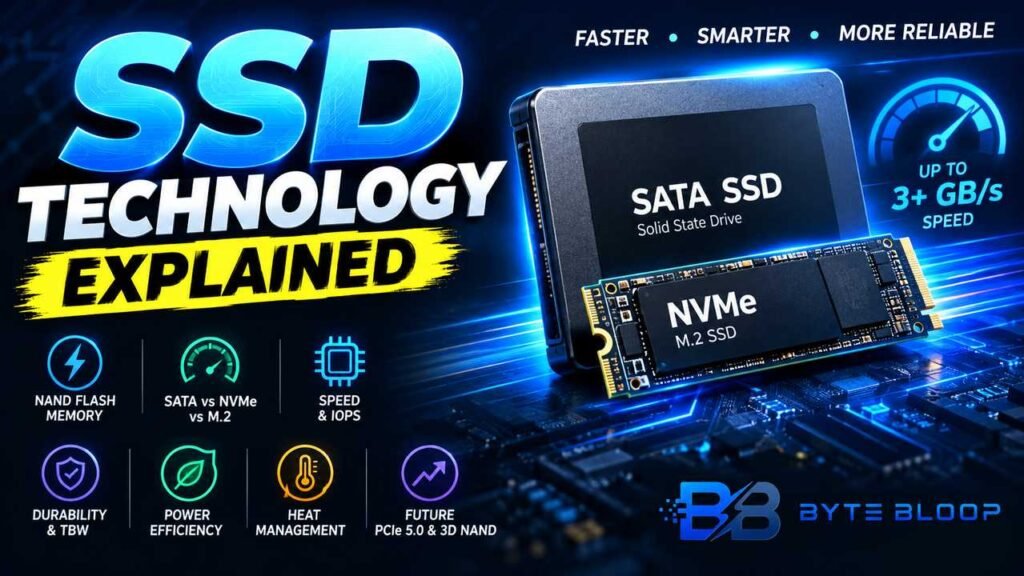
SSD Technology Explained: How SSDs Work, SATA vs NVMe, M.2 and Performance
Introduction
Solid-state drives, commonly called SSDs, have become a standard storage option across modern laptops, desktops, gaming PCs, workstations and servers. Unlike traditional hard disk drives (HDDs), SSDs store data electronically using NAND flash memory rather than spinning magnetic platters and mechanical read/write heads.
This difference allows SSDs to provide much faster access to stored data than mechanical hard drives. Replacing an HDD with an SSD can make everyday tasks such as booting an operating system, opening applications and transferring files feel significantly more responsive.
However, not all SSDs are the same.
An SSD can use different interfaces, protocols, form factors, NAND configurations and controllers. A 2.5-inch SATA SSD and an M.2 NVMe SSD may both be called SSDs, but their physical design and connection technology can be very different.
Understanding these differences is important when upgrading a computer or choosing storage for a new system.
In this guide, BYTE BLOOP explains SSD technology, how NAND flash stores data, the difference between SATA and NVMe, what M.2 actually means, how PCIe generations affect performance, what TBW means, and what to consider before buying an SSD.
What Is an SSD?
An SSD (solid-state drive) is a storage device that uses semiconductor memory to store digital data.
Unlike an HDD, an SSD does not need a spinning platter or moving read/write head to access information. Instead, data is stored in NAND flash memory cells controlled by an SSD controller.
This architecture provides several advantages:
- Fast data access
- Low storage latency
- No mechanical moving parts
- Compact form factors
- Good resistance to physical shock compared with mechanical drives
- Quiet operation
- Efficient performance for many computing workloads
SSDs are now used in everything from consumer laptops and desktops to enterprise servers and specialized computing systems.
How SSDs Store Data
At the center of an SSD is NAND flash memory.
NAND is a type of non-volatile memory, meaning it can retain stored information even when the device is powered off.
The flash memory is organized into structures such as pages and blocks. Data can generally be programmed at the page level, while erase operations occur at the block level.
Because flash memory cannot simply overwrite data in exactly the same way as a magnetic hard drive, SSD controllers perform several important management tasks.
These can include:
- Wear leveling
- Garbage collection
- Error correction
- Bad-block management
- Data mapping
- Over-provisioning management
The SSD controller essentially acts as the system responsible for coordinating communication between the computer and the NAND flash.
This is one reason two SSDs with similar advertised sequential speeds can behave differently under sustained or mixed workloads.
SSD Controller and Firmware
The NAND flash is only one part of an SSD.
An SSD also contains a controller, which manages data movement between the host system and flash memory.
The controller handles functions such as:
- Reading and writing data
- Error correction
- Wear leveling
- Garbage collection
- Flash translation
- Managing multiple NAND channels
- Handling host commands
The drive’s firmware works alongside the controller to manage these operations.
This means SSD performance depends on more than just the NAND chips. Controller design, firmware, NAND type, cache architecture, thermal behavior and interface bandwidth can all influence real-world performance.
SATA vs NVMe
One of the most important SSD distinctions is the difference between SATA and NVMe.
They are not simply two different SSD shapes.
SATA is an interface standard originally designed around storage devices such as hard drives and later widely used by SATA SSDs.
NVMe (Non-Volatile Memory Express) is a storage protocol designed specifically for non-volatile memory and commonly used with PCIe-based SSDs.
The NVM Express organization defines NVMe specifications for communicating with non-volatile memory across transports including PCIe.
SATA SSDs
SATA III has a theoretical interface limit of 6 Gbps. Actual SSD throughput is lower because of protocol and system overhead.
SATA SSDs remain useful because they can provide a substantial improvement over HDDs without requiring a modern PCIe NVMe slot.
They are particularly useful for:
- Older desktops
- Older laptops
- Systems without NVMe support
- Secondary storage upgrades
- General-purpose computing
NVMe SSDs
NVMe SSDs communicate using the NVMe protocol over PCIe in common consumer implementations.
NVMe was designed around the characteristics of flash storage and supports multiple queues and command processing designed for low-latency storage workloads.
Modern PCIe generations provide substantially more bandwidth than SATA, allowing NVMe SSDs to achieve much higher sequential throughput.
Kingston’s technical documentation also describes NVMe as a PCIe-based SSD communication technology and distinguishes it from SATA/AHCI storage.
SATA vs NVMe at a glance
| Feature | SATA SSD | NVMe SSD |
|---|---|---|
| Common interface | SATA | PCIe |
| Common protocol | AHCI | NVMe |
| Typical consumer form factors | 2.5-inch, some M.2 | M.2, PCIe add-in cards and others |
| Maximum interface bandwidth | Lower | Much higher |
| Latency potential | Higher | Lower |
| Best suited for | General upgrades and older systems | Modern PCs, gaming, demanding workloads |
| Compatibility | Broad with SATA systems | Requires compatible PCIe/NVMe support |
The exact performance of an NVMe SSD depends on its PCIe generation, lane configuration, controller, NAND and workload.
What Does M.2 Mean?
A common misconception is that M.2 means NVMe.
It does not.
M.2 is a physical form factor and specification for compact expansion devices. An M.2 SSD can use different storage interfaces depending on the drive and host system.
Kingston’s documentation specifically notes that M.2 is a form factor and that M.2 SSDs can use SATA or PCIe-based storage technologies.
This means:
M.2 describes the physical format; NVMe describes the storage protocol.
An M.2 SSD can therefore be:
- M.2 SATA
- M.2 NVMe
Modern systems commonly use M.2 NVMe drives, but you should always check the motherboard or laptop specifications before buying.
Common M.2 Sizes
M.2 SSDs are available in different physical lengths.
Common examples include:
- 2230
- 2242
- 2260
- 2280
- 22110
The numbers describe the approximate dimensions in millimeters.
For example, 2280 means approximately:
- 22 mm wide
- 80 mm long
M.2 2280 is one of the most common sizes in desktop and laptop SSDs.
However, compatibility depends on the device’s physical mounting support, socket configuration and supported storage interface.
PCIe Generations and SSD Performance
NVMe SSD performance is closely connected to the PCIe generation and lane configuration supported by the system.
Common PCIe generations include:
- PCIe 3.0
- PCIe 4.0
- PCIe 5.0
Each generation increases available bandwidth.
For example, Kingston’s current technical material lists progressively higher theoretical per-lane transfer rates across PCIe generations.
However, a newer PCIe generation does not automatically mean that every application will become proportionally faster.
Real-world performance depends on:
- SSD controller
- NAND flash
- Queue depth
- Workload
- Thermal conditions
- PCIe lane configuration
- Operating system
- Application behavior
Large sequential file transfers can benefit substantially from higher bandwidth, while everyday desktop activities may show smaller differences.
SSD Performance Metrics Explained
SSD specifications can be confusing because manufacturers advertise several different performance measurements.
The most important ones include sequential speed, random IOPS and latency.
Sequential Read and Write Speed
Sequential performance measures how quickly an SSD can read or write relatively large blocks of continuous data.
It is particularly relevant for tasks such as:
- Large file transfers
- Video files
- Disk imaging
- Some content-creation workloads
- Large application installations
For example, a manufacturer might advertise a maximum sequential read speed in GB/s.
However, advertised maximum performance does not necessarily represent the speed you will experience in every workload.
Random IOPS
IOPS means Input/Output Operations Per Second.
Random I/O performance measures how effectively a storage device handles many smaller data requests.
This can matter for:
- Operating systems
- Databases
- Application workloads
- Multitasking
- Virtual machines
- Server workloads
NVMe’s architecture supports significantly more command queues than the traditional AHCI model, which helps it handle highly parallel storage workloads efficiently.
Latency
Latency is the delay involved in processing a storage request.
Lower storage latency can contribute to faster system responsiveness, especially when applications perform many small storage operations.
NVMe was designed with lower-latency, parallel command processing in mind, which is one reason it is well suited to modern SSD workloads.
NAND Flash Types
Not all NAND flash behaves exactly the same.
NAND technologies can differ in how many bits are stored in each memory cell.
Common categories include:
- SLC
- MLC
- TLC
- QLC
SLC
Single-Level Cell stores one bit per cell.
It offers strong endurance and performance characteristics but is expensive on a per-capacity basis, so it is not the typical choice for high-capacity consumer SSDs.
MLC
Multi-Level Cell traditionally stores two bits per cell.
It can provide a balance of endurance, performance and density, although terminology and product implementations vary across the storage industry.
TLC
Triple-Level Cell stores three bits per cell.
TLC has become common in consumer SSDs because it provides a practical balance between capacity, performance and cost.
QLC
Quad-Level Cell stores four bits per cell.
QLC can enable higher capacities and lower cost per gigabyte, although endurance and sustained write behavior can differ from comparable TLC products.
For most buyers, the NAND type should be considered alongside the controller, warranty, endurance rating, cache behavior and actual workload rather than treated as the only deciding factor.
SSD Endurance: TBW and DWPD Explained
Flash memory cells have a finite number of program/erase cycles.
SSD manufacturers therefore provide endurance specifications to describe how much writing a drive is designed to handle.
Two common measurements are:
TBW
TBW means Terabytes Written.
It indicates the amount of data the manufacturer rates the drive to handle over its specified life or warranty conditions.
DWPD
DWPD means Drive Writes Per Day.
This measurement is particularly common in enterprise storage.
It estimates how many times the drive’s full capacity can be written per day over a specified period.
For example, a 1 TB enterprise SSD rated at 1 DWPD for five years has a very different endurance target from a consumer SSD designed for lighter workloads.
Importantly, endurance ratings should not be interpreted as an exact moment when a drive will fail. Actual drive lifespan can vary according to workload, NAND behavior, controller design, temperature and other conditions.
What Is Wear Leveling?
Because NAND cells have limited program/erase endurance, SSD controllers use wear leveling to distribute writes across available flash cells.
Without effective wear leveling, frequently updated areas of the drive could experience significantly more wear than other areas.
The controller therefore attempts to distribute writes more evenly.
Other techniques such as garbage collection and over-provisioning also help SSDs manage flash memory efficiently.
What Is Over-Provisioning?
Over-provisioning means reserving some flash capacity for internal SSD operations rather than exposing all physical NAND capacity to the user.
The reserved area can help the controller with:
- Garbage collection
- Wear leveling
- Replacing worn or defective cells
- Maintaining performance
The exact implementation differs between SSD designs.
This is one reason leaving some free space on an SSD can be beneficial, particularly under heavy workloads.
SSD Heat and Power Consumption
SSDs do not contain the spinning mechanical components found in HDDs, but that does not mean every SSD always consumes less power or produces less heat in every workload.
SATA SSDs are generally relatively efficient, while high-performance NVMe drives can consume substantial power during demanding workloads.
This is especially relevant with modern high-performance PCIe SSDs.
Thermal behavior can affect sustained performance.
Some high-performance NVMe SSDs therefore use:
- Heatsinks
- Thermal pads
- Controller-level thermal management
- Firmware-based throttling
A drive that reaches a thermal limit may reduce performance temporarily to control temperature.
For desktop PCs, laptops and compact systems, checking the manufacturer’s thermal requirements and motherboard compatibility can therefore be important.
SSDs vs HDDs
SSDs and HDDs are both storage technologies, but they work very differently.
| Feature | SSD | HDD |
|---|---|---|
| Storage technology | NAND flash | Magnetic platters |
| Moving parts | No | Yes |
| Access latency | Low | Higher |
| Noise | Silent | Mechanical noise |
| Physical shock resistance | Generally higher | Generally lower |
| Sequential performance | Generally higher | Generally lower |
| Cost per GB | Often higher | Often lower |
| Large-capacity archival use | Available | Often cost-effective |
An SSD is generally attractive when responsiveness and low latency matter.
An HDD can still be useful where very large amounts of storage are needed at a lower cost per gigabyte.
SATA SSD vs NVMe SSD: Which Type Fits Different Users?
There is no universal requirement for every computer to use the fastest available SSD.
SATA SSD
A SATA SSD can make sense when:
- The computer only supports SATA
- You are upgrading an older PC
- You want to replace an HDD
- You need affordable secondary storage
- Your workload does not require high PCIe storage performance
NVMe SSD
An NVMe SSD can make more sense when:
- Your motherboard supports NVMe
- You are building a modern PC
- You regularly transfer large files
- You use demanding applications
- You work with large media files
- You want high-performance storage for a compatible gaming or workstation system
For ordinary web browsing, documents and basic applications, the difference between two SSDs may be less noticeable than benchmark numbers suggest.
SSDs for Gaming
An SSD can significantly improve game loading compared with a mechanical hard drive.
However, choosing a gaming SSD should not be based solely on the highest advertised sequential read speed.
Consider:
- Capacity
- Game library size
- Random performance
- Sustained write behavior
- Thermal performance
- PCIe compatibility
- Endurance
- Price per GB
Modern games can require substantial storage space, so capacity can sometimes be more important than chasing the highest benchmark figure.
SSDs for Video Editing and Content Creation
Content creators often work with large files, making storage performance particularly relevant.
An SSD can help with:
- Loading large projects
- Moving source footage
- Application launch times
- Media caching
- Project file access
- Export workflows
However, the storage configuration matters.
For example, a content-creation workstation may benefit from separate drives for the operating system, active projects and backup/archive storage.
Storage speed should therefore be evaluated as part of the complete workflow rather than in isolation.
SSDs for Servers and Enterprise Workloads
Enterprise storage introduces different requirements.
Data-center SSDs may prioritize:
- High endurance
- Consistent latency
- Reliability
- Power efficiency
- Error protection
- High-capacity configurations
- Hot-plug support
- Predictable performance
NVMe is widely used across enterprise and data-center environments, with form factors including M.2, U.2, U.3 and EDSFF depending on the platform.
Consumer SSD specifications should therefore not be directly compared with enterprise drives without considering the workload and endurance requirements.
How to Choose the Right SSD
Before buying an SSD, work through the following checklist.
1. Check Your Device Compatibility
First determine what your computer supports.
Check:
- SATA ports
- M.2 slots
- Supported M.2 size
- NVMe support
- PCIe generation
- Available PCIe lanes
- BIOS/firmware compatibility
An M.2 slot alone does not necessarily mean every M.2 SSD will work.
2. Choose the Right Capacity
Common capacities include:
- 500 GB
- 1 TB
- 2 TB
- 4 TB and above
Your choice depends on what you store.
Operating systems and everyday applications can fit on relatively modest drives, while gaming libraries, video projects and large datasets can require substantially more space.
3. Check Real-World Performance
Do not buy an SSD purely because its packaging displays a large sequential read number.
Look at:
- Sequential read/write
- Random IOPS
- Latency
- Sustained write performance
- Independent reviews
- Thermal behavior
4. Check Endurance
Look for the manufacturer’s TBW or other endurance information.
This is especially important for:
- Video editing
- Workstations
- Servers
- Databases
- Heavy daily workloads
For normal consumer use, an appropriately rated SSD can provide years of practical service, but the actual lifespan depends on usage and drive design.
5. Check Warranty and Support
Before purchasing, check:
- Warranty duration
- Endurance terms
- Manufacturer support
- Firmware update tools
- Recovery/support policies
These details can be just as important as the headline performance number.
Common SSD Buying Mistakes
Mistake 1: Assuming Every M.2 SSD Is NVMe
M.2 describes a physical form factor.
Always verify whether the specific M.2 slot and SSD use SATA or PCIe/NVMe.
Mistake 2: Choosing Only by Read Speed
A higher advertised sequential read speed does not guarantee a proportionally better everyday experience.
Mistake 3: Ignoring Compatibility
Check the motherboard or laptop documentation before purchasing.
Mistake 4: Ignoring Thermals
High-performance NVMe SSDs can generate significant heat under sustained workloads.
Mistake 5: Buying Too Little Storage
An inexpensive SSD can become inconvenient if it fills up quickly.
Mistake 6: Ignoring Endurance
Heavy-write workloads should pay attention to TBW and other endurance specifications.
Mistake 7: Comparing Consumer and Enterprise SSDs Directly
Enterprise SSDs can be designed around very different endurance, reliability and workload requirements.
How to Maintain an SSD
Modern operating systems handle much of SSD maintenance automatically, but users should still follow sensible storage practices.
Keep the firmware updated
If the manufacturer provides firmware updates and recommends installing them, follow its documented procedure.
Maintain adequate free space
Avoid keeping an SSD permanently filled to its maximum capacity.
Use proper backups
An SSD is not a backup.
Important files should be backed up to another storage device or appropriate backup service.
Monitor drive health
Many SSD manufacturers provide utilities that can display drive health, firmware information and other diagnostic data.
SSD Technology in 2026
SSD technology continues to evolve around several areas:
- Higher PCIe generations
- Increasing NAND density
- More advanced 3D NAND
- Better controller efficiency
- Higher capacities
- Improved power management
- Enterprise NVMe form factors
- Storage optimized for increasingly demanding workloads
The NVMe specification itself continues to evolve. NVM Express states that its latest specification set was released on August 4, 2026, illustrating that the underlying storage standard is still actively developing.
At the same time, higher interface bandwidth does not automatically translate into an equally large improvement in every application. The workload, controller, NAND, thermals and system platform still matter.
SSD Technology: Key Takeaways
- SSDs use NAND flash memory instead of spinning magnetic platters.
- SSD controllers manage data movement, error correction, wear leveling and other internal operations.
- SATA and NVMe are different storage technologies and interfaces/protocol combinations.
- M.2 is a form factor, not another name for NVMe.
- NVMe commonly uses PCIe to provide much higher bandwidth than SATA.
- Sequential speed, random IOPS and latency measure different aspects of SSD performance.
- TBW and DWPD help describe SSD endurance.
- NAND type, controller, firmware and thermal behavior can influence real-world performance.
- PCIe 4.0 and PCIe 5.0 provide increasing bandwidth, but applications do not always benefit equally.
- Compatibility should be checked before purchasing an SSD.
- An SSD should not be treated as a replacement for a proper backup strategy.
Frequently Asked Questions
What is an SSD?
An SSD is a storage device that uses NAND flash memory to store data electronically without the spinning platters and mechanical read/write heads found in HDDs.
What is NVMe?
NVMe, or Non-Volatile Memory Express, is a storage protocol designed for non-volatile memory and commonly used with PCIe-based SSDs. It provides a storage communication model designed for high-performance flash storage.
Is M.2 the same as NVMe?
No. M.2 is a form factor, while NVMe is a storage protocol. M.2 SSDs can use different interfaces, including SATA and PCIe/NVMe depending on the drive and system.
Is NVMe faster than SATA?
NVMe SSDs connected through PCIe can provide substantially higher bandwidth and lower-latency storage communication than SATA SSDs. However, the exact performance depends on the PCIe generation, SSD controller, NAND, workload and system configuration.
What does TBW mean?
TBW stands for Terabytes Written. It is a manufacturer’s endurance specification describing the amount of data a drive is rated to handle under its specified conditions.
Is a higher SSD read speed always better?
Not necessarily. Sequential read speed is only one performance metric. Random IOPS, latency, sustained performance, thermals and workload can also affect the user experience.
How long can an SSD last?
There is no single lifespan that applies to every SSD. Longevity depends on NAND, controller design, workload, write volume, temperature and other factors. Manufacturer endurance ratings can help compare drives.
Is an SSD better than an HDD?
For many PC workloads, an SSD provides much lower latency and faster access to data than an HDD. HDDs can still be useful when very large amounts of storage are needed at a lower cost per gigabyte.
Can I use an NVMe SSD in any M.2 slot?
No. The M.2 slot must support the appropriate storage interface and physical drive configuration. Always check the motherboard or laptop documentation before purchasing.
Do SSDs need maintenance?
Modern operating systems perform many storage-management tasks automatically. Users should still keep firmware appropriately updated, maintain backups, monitor drive health when useful and avoid filling a drive completely.
Conclusion
SSD technology has transformed computer storage by replacing mechanical access with fast semiconductor-based NAND flash memory.
Understanding the difference between SATA, NVMe, PCIe and M.2 makes it much easier to choose the right storage device. SATA SSDs remain useful for older systems and straightforward upgrades, while NVMe SSDs can provide substantially greater bandwidth on compatible PCIe platforms.
But the fastest specification is not always the most important one.
Before buying an SSD, consider compatibility, capacity, workload, endurance, thermals, warranty and real-world performance. For gaming, content creation, everyday computing and enterprise workloads, the ideal SSD can be different.
The most useful approach is therefore to choose an SSD based on how you actually use your computer, rather than selecting a drive solely because it has the biggest benchmark number.
Related Reading
- How to Choose the Right SSD for Gaming
- AI for Developers Explained
- Web Application Security Explained
Note: I have not invented a specific BYTE BLOOP URL for “Choosing the Right SSD for Gaming” because the exact existing URL was not provided/verified. Replace the first link with its real URL if that article already exists.
Official Sources
- NVM Express — Official Specifications — NVMe specification and current specification-set information.
- NVM Express — NVMe over PCIe — official explanation of NVMe over PCIe.
- Kingston — Understanding SSD Technology — SATA, PCIe, NVMe and storage performance information.
- Kingston — SATA and M.2 SSD FAQ — M.2 form factors, compatibility and SATA/NVMe distinctions.
- Google Search Central — Creating Helpful, Reliable, People-First Content — guidance relevant to content quality and originality.