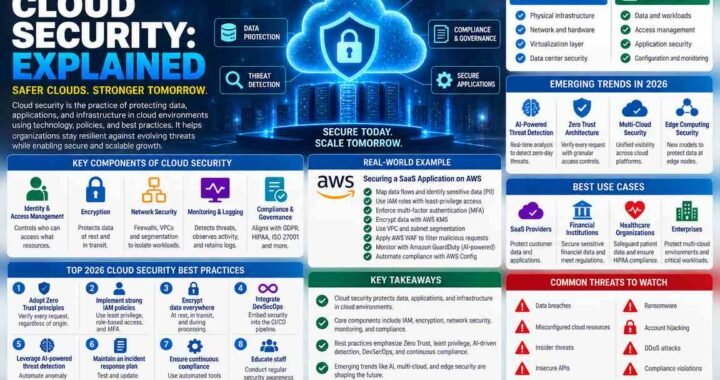
Mac Security: Explained
Introduction
Apple’s macOS has long been praised for its robust security architecture, but as the threat landscape evolves, users must stay ahead of attackers. From hardware‑level encryption to granular app permissions, every layer of the system is designed to defend against intrusion, data theft, and malware. However, the sheer number of built‑in safeguards can be overwhelming, especially for casual users who rely on their Mac for work, media, and personal data. Understanding the core mechanisms—such as FileVault, Gatekeeper, and the System Integrity Protection—enables you to configure your machine for maximum protection without sacrificing usability. In this guide, we’ll break down each component, show how they interlock, and provide practical steps to harden your Mac against modern threats. We’ll also look at how Apple’s transition to Apple Silicon has tightened security and what that means for everyday users. By the end, you’ll know exactly which settings to tweak, which third‑party tools to trust, and how to keep your data safe whether you’re a student, a freelancer, or a small business owner. The goal is simple: give you a clear, actionable roadmap for securing your Mac in 2026 and beyond.
1. The Foundation: Hardware and Firmware Security
Apple Silicon Macs start with a hardware‑rooted security model. The Secure Enclave, a dedicated coprocessor, handles encryption keys, Touch ID, and Face ID data. This isolated environment ensures that even if the main CPU is compromised, sensitive data remains protected. The T2 chip on Intel‑based Macs provides similar functions, including encrypted storage and secure boot. Firmware updates are signed by Apple and verified during boot, preventing unauthorized firmware from loading.
2. FileVault: Full‑Disk Encryption Made Easy
FileVault uses XTS-AES-128 encryption to lock the entire disk. When enabled, the system requires a password or recovery key before the OS can load. In 2026, Apple introduced a new recovery key generator that can be stored in iCloud, allowing for quick recovery without writing down a long string. Tip: Enable FileVault in System Settings > Security & Privacy > FileVault and keep your recovery key in a password manager.
3. Gatekeeper and App Store Controls
Gatekeeper ensures that only apps from the Mac App Store or identified developers can run by default. It checks the developer’s Apple ID and verifies that the app is signed. In 2026, Apple expanded Gatekeeper to include a “Notarization” step where Apple scans the app for malicious code before it can be installed. Users can relax this setting for trusted developers, but doing so increases risk.
4. System Integrity Protection (SIP)
SIP protects critical system files and processes from modification, even by the root user. It restricts write access to /System, /usr, and other protected directories. Disabling SIP is rarely necessary and should only be considered by advanced developers who need to modify low‑level components. Remember: Re‑enable SIP after completing your task to restore protection.
5. Network Security: Firewall and VPN
The built‑in application firewall blocks inbound connections unless explicitly allowed. In 2026, Apple added a “Stealth Mode” that hides your Mac from network scans. For remote work, a VPN encrypts traffic and masks your IP. Many enterprise users now use a corporate VPN that also enforces multi‑factor authentication (MFA). Action: Turn on the firewall in System Settings > Network > Firewall and enable Stealth Mode if you’re in a public Wi‑Fi environment.
6. Privacy Controls and App Permissions
macOS 14 introduced granular permissions for camera, microphone, location, and more. Users can view which apps have accessed each resource in System Settings > Privacy. Attackers often exploit over‑privileged apps to exfiltrate data. Best practice: Review permissions monthly and revoke any that seem unnecessary.
7. Password Management and MFA
Apple’s iCloud Keychain syncs passwords across devices and uses end‑to‑end encryption. For added security, enable two‑factor authentication on your Apple ID and any third‑party accounts. Consider a dedicated password manager like 1Password or Bitwarden for complex, unique passwords. Pro tip: Use a separate recovery email for your Apple ID to prevent credential stuffing attacks.
8. Third‑Party Security Solutions
While macOS offers strong native protection, many users opt for additional layers. Kaspersky’s Mac Security suite, for example, provides real‑time malware detection and a secure browser. Enterprise environments may deploy SentinelOne or CrowdStrike for endpoint detection and response (EDR). When selecting third‑party software, check that it’s notarized and has a good track record in independent tests, such as the 2026 Mac Security Test & Review.
9. Keeping Your System Updated
Apple releases monthly security updates that patch zero‑day vulnerabilities. In 2026, the update cadence accelerated to address emerging threats like side‑channel attacks on Apple Silicon. Enable automatic updates in System Settings > General > Software Update to ensure you receive patches as soon as they’re available.
10. Remote Management and Device Recovery
Apple’s Find My network allows you to locate, lock, or erase a lost Mac. The feature uses end‑to‑end encryption and works even when the device is offline. For businesses, Mobile Device Management (MDM) solutions enforce compliance, deploy policies, and manage device inventory. Action: Activate Find My on every Mac and consider an MDM if you manage multiple devices.
Putting It All Together: A Step‑by‑Step Checklist
1. Enable FileVault and store the recovery key securely.
2. Turn on the application firewall and enable Stealth Mode.
3. Review app permissions monthly and revoke unnecessary access.
4. Keep macOS and all apps up to date.
5. Use a reputable password manager and enable MFA.
6. Install a trusted third‑party security suite if needed.
7. Activate Find My and consider MDM for multiple devices.
Key Takeaways
- FileVault encrypts the entire disk and should be enabled on all Macs.
- Gatekeeper and notarization prevent untrusted apps from running by default.
- Regularly review app permissions to reduce data exposure.
- Keeping macOS and apps up to date is the most effective defense against zero‑day exploits.
- Using a password manager and MFA protects against credential theft.
- Find My and MDM provide recovery and compliance for lost or stolen devices.
Frequently Asked Questions
What is mac security explained?
Mac security explained refers to the combination of hardware, software, and user‑controlled settings that protect macOS devices from malware, unauthorized access, and data breaches.
What are the key features of mac security explained?
Key features include FileVault full‑disk encryption, Gatekeeper notarization, System Integrity Protection, built‑in firewall, granular privacy permissions, and Apple’s secure enclave.
What are the best use cases for mac security explained?
It is ideal for professionals handling sensitive data, small businesses managing multiple Macs, and home users who want peace of mind against modern cyber threats.
What are the pros and cons of mac security explained?
Pros: strong native protection, seamless integration, low resource overhead. Cons: some advanced features require manual configuration, and third‑party tools may add complexity.
Conclusion
Based on the available information and industry analysis, mac security explained demonstrates that Apple’s layered approach—from hardware encryption to granular app permissions—provides a formidable defense against modern threats. By combining built‑in safeguards with proactive user actions such as enabling FileVault, keeping software updated, and employing MFA, Mac users can significantly reduce their risk profile while maintaining productivity. Continuous vigilance and regular reviews of security settings remain essential to stay ahead of evolving attack vectors.
Related Reading
- Top 5 Mac Apps for Secure Browsing