Drawing Tablets: Explained
Introduction
Drawing tablets have become the backbone of digital art, allowing illustrators, animators, and designers to translate hand‑drawn ideas into precise, editable digital form. Whether you’re sketching on a phone, painting in a studio, or creating motion graphics, a tablet provides a natural, responsive interface that mimics traditional media. The technology behind these devices—pressure‑sensitive styluses, high‑resolution displays, and ergonomic designs—has evolved rapidly, making it easier than ever for beginners and professionals alike to pick up a new tool. In this article we’ll break down the core types of drawing tablets, explain how they differ, and help you decide which model fits your budget, workflow, and artistic goals.
We’ll cover the three main categories: pen‑only tablets, pen‑display tablets, and pen‑computer tablets. You’ll learn about key specs such as resolution, pressure levels, and screen size, and we’ll highlight top picks for every price range based on recent reviews from Creative Bloq, Art Rocket, and Wirecutter. By the end, you’ll have a clear picture of how each option works and which one is worth your investment.
What Is a Drawing Tablet?
A drawing tablet is a computer input device that lets you hand‑draw or paint images, animations, and graphics using a stylus. The tablet’s surface translates pen movements into digital signals, which your software interprets as strokes, brushes, or other tools. Some tablets, like the Wacom Intuos, have no screen and rely on a separate monitor, while others, such as the XP‑Pen Artist series, display your artwork directly on the tablet’s screen.
Three Core Types of Tablets
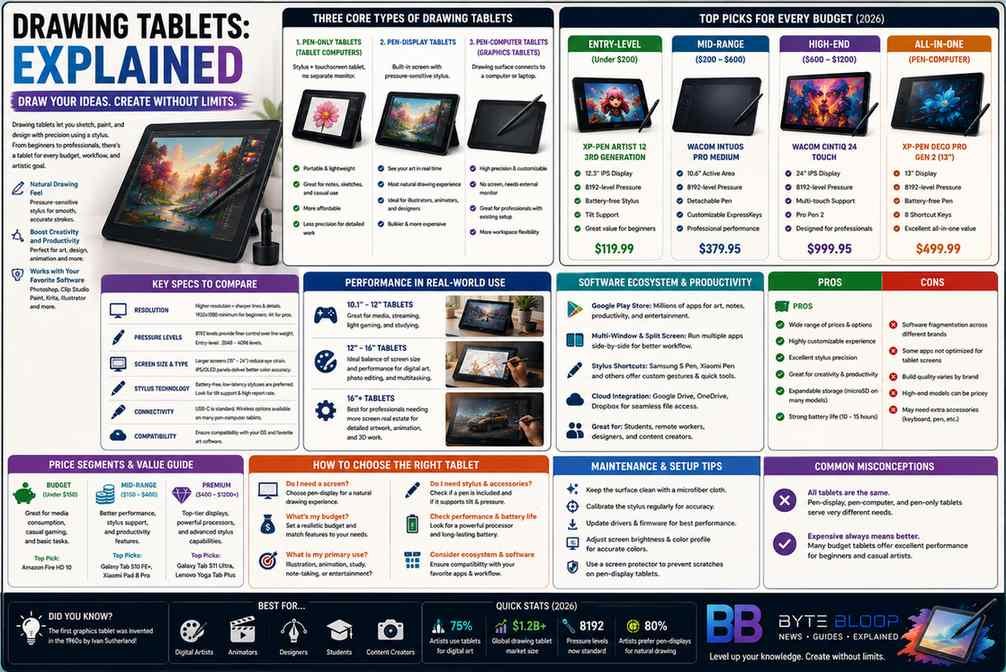
Pen‑Only Tablets (Tablet Computers)
These devices have a stylus and a touch‑screen but no separate monitor. They’re often marketed as “drawing tablets” but are essentially tablets with a stylus. They’re portable, inexpensive, and great for quick sketches or note taking. However, the lack of a dedicated drawing surface can make precision harder for detailed work.
Pen‑Display Tablets
Pen‑display tablets combine a pressure‑sensitive stylus with a built‑in screen. The Wacom Cintiq 24 Touch and XP‑Pen Artist 12 3rd are leaders in this space. Artists benefit from seeing their strokes in real time, which improves hand‑eye coordination and reduces the learning curve. These tablets are heavier and more expensive but deliver the most natural drawing experience.
Pen‑Computer Tablets (Graphics Tablets)
These are the classic “tablet” models that connect to a computer via USB or Bluetooth. The Wacom Intuos Pro, XP‑Pen Deco, and Huion Kamvas Pro are examples. They offer high resolution, 8192‑level pressure sensitivity, and customizable ExpressKeys, but you need a separate monitor. They’re ideal for artists who already have a powerful PC or laptop and want a dedicated drawing surface without a built‑in screen.
Key Specs to Compare
- Resolution – Higher pixel density means crisper lines. Look for at least 1920×1080 for beginners; 4K for professionals.
- Pressure Levels – 8192 levels provide fine control over line weight. Some entry‑level models offer 2048–4096 levels.
- Screen Size & Type – Larger screens (15–24 inches) reduce eye strain but increase cost. IPS panels deliver better color accuracy.
- Stylus Technology – Battery‑free, low‑latency styluses are preferred. Some tablets use magnetic or capacitive sensors.
- Connectivity – USB‑C is standard; wireless options are available for pen‑computer tablets.
Top Picks for Every Budget
Based on recent reviews, these models stand out:
- Entry‑Level (under $200) – XP‑Pen Artist 12 3rd: 12.3‑inch IPS, 8192‑level pressure, affordable price.
- Mid‑Range ($200–$600) – Wacom Intuos Pro Medium: 10.6‑inch, 8192‑level, detachable pen, great for beginners.
- High‑End ($600–$1200) – Wacom Cintiq 24 Touch: 24‑inch IPS, 8192‑level, touch support, perfect for pros.
- All‑in‑One (Pen‑Computer) – XP‑Pen Deco Pro: 13‑inch, 8192‑level, detachable pen, excellent value.
How to Choose the Right Tablet for Your Workflow
Ask yourself:
- Do I need a screen or can I work on a separate monitor?
- What is my budget?
- Will I use the tablet for detailed illustration, quick sketches, or animation?
- Do I need touch support for multitasking?
For beginners, a pen‑display like the XP‑Pen Artist 12 3rd offers a low barrier to entry. Professionals who demand the highest fidelity should consider the Wacom Cintiq 24 Touch. If portability is key, a pen‑only tablet or a lightweight pen‑computer tablet can be ideal.
Maintenance and Setup Tips
Keep the tablet surface clean with a microfiber cloth. Calibrate your stylus regularly to maintain pressure accuracy. Update drivers and firmware to ensure compatibility with your software. For pen‑display users, adjust screen brightness and color profile to match your monitor for consistent color.
Common Misconceptions
Many think all tablets are the same, but the distinction between pen‑display and pen‑computer tablets matters. Also, a lower price does not always mean lower quality; some budget models offer surprisingly high resolution and pressure sensitivity.
Key Takeaways
- Pen‑display tablets deliver the most natural drawing experience but cost more.
- Pen‑computer tablets are ideal for artists who already have a monitor and want a dedicated drawing surface.
- Resolution and pressure levels are critical specs that affect line quality and precision.
- Budget ranges: <$200 for entry‑level, $200–$600 for mid‑range, $600+ for high‑end professionals.
- Regular calibration and driver updates keep tablets performing at peak levels.
Frequently Asked Questions
What is the difference between a pen‑display and a pen‑computer tablet?
A pen‑display tablet has a built‑in screen that shows your artwork in real time, while a pen‑computer tablet connects to an external monitor and only provides a drawing surface.
What are the key features to look for in a drawing tablet?
Resolution, pressure sensitivity (8192 levels is ideal), screen size and type, stylus technology, and connectivity options like USB‑C or Bluetooth.
What are the best use cases for a pen‑only tablet?
Quick sketches, note taking, and artists who prefer portability or already own a powerful computer.
What are the pros and cons of a high‑end pen‑display tablet?
Pros: natural drawing feel, large screen, touch support. Cons: higher cost, heavier, requires more desk space.
Conclusion
Based on the available information and industry analysis, drawing tablets provide a versatile bridge between traditional hand‑drawing and digital production, offering artists precision, flexibility, and a natural workflow. Whether you choose a pen‑display for immersive sketching or a pen‑computer for studio‑grade work, the right tablet can elevate your creative process and streamline your workflow.
Related Reading
- Top 10 Digital Art Software for Beginners
- How to Calibrate Your Drawing Tablet for Perfect Pressure