Screen Recorder Apps: Explained
Introduction
Screen recorder apps have become indispensable for creators, educators, and support teams who need to capture on‑screen actions quickly and efficiently. Whether you’re recording a tutorial, troubleshooting a bug, or sharing a game moment, a reliable recorder turns raw activity into a polished video that can be shared on social media, embedded in help docs, or used for training. Modern screen recorders go beyond simple video capture; they offer real‑time annotations, audio mixing, and cloud export options that streamline the workflow from capture to distribution. In this guide we’ll break down how screen recording works on mobile and desktop, highlight the top free and paid options, and give you practical tips for getting the best quality with minimal fuss. We’ll also cover common pitfalls—such as battery drain and privacy concerns—and how to avoid them. By the end, you’ll know which app fits your needs and how to use it like a pro.
How Screen Recorders Work
At their core, screen recorders tap into the device’s display buffer, capturing every frame as it appears on the screen. On Android, the native MediaProjection API handles the heavy lifting, while iOS uses the ReplayKit framework. Desktop solutions like OBS Studio or Camtasia hook into the operating system’s graphics pipeline. The captured frames are then encoded into a video format—commonly MP4 or MOV—using codecs such as H.264 or AV1. Audio can be sourced from the device’s microphone, the system audio, or both, depending on the app’s capabilities.
Key Features to Look For
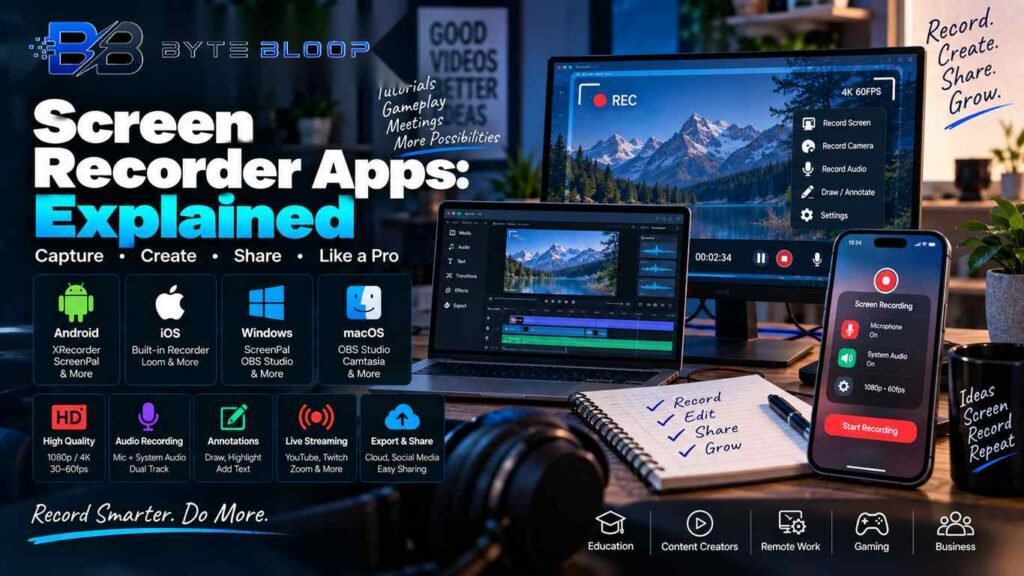
- Resolution & Frame Rate – Higher resolution (1080p or 4K) and frame rates (30–60fps) yield smoother playback, especially for fast‑moving content.
- Audio Options – Dual‑track recording (system + mic) is essential for tutorials and customer support videos.
- Annotation Tools – Built‑in drawing, arrows, and text boxes let you highlight important areas without post‑editing.
- Live Streaming – Some apps allow you to broadcast directly to YouTube, Twitch, or Zoom.
- Export & Sharing – Quick upload to cloud services or direct sharing via email, social media, or messaging apps.
Top Screen Recorder Apps for 2026
Android
Android’s native recorder is a solid choice for quick captures, but third‑party apps add flexibility. XRecorder (source: Google Play) offers HD video, easy screenshots, and a clean interface. ScreenPal (source: ScreenPal.com) provides free recording with editing tools, while OBS Studio (source: Swarmify.com) remains the king for creators who need scene switching and no recording limits.
iOS
iOS users benefit from the built‑in Screen Recording feature in Control Center, which supports 1080p at 60fps and system audio. For advanced needs, Loom (source: Demoscope.app) adds instant video sharing and annotation, making it ideal for onboarding demos.
Desktop (Windows/Mac)
For Windows, ScreenPal offers a free, lightweight solution that works across browsers. On macOS, OBS Studio remains the most versatile, supporting multiple sources, overlays, and real‑time streaming. Camtasia (source: Zapier.com) is a paid option that bundles editing with recording, perfect for polished tutorials.
Practical Tips for Better Recordings
- Test Before You Record – Run a short test clip to check audio levels and screen clarity.
- Close Unnecessary Apps – Reducing background processes lowers CPU usage and prevents lag.
- Use a Wired Microphone – USB mics deliver clearer voice capture than built‑in microphones.
- Enable Battery Saver Wisely – Some recorders throttle performance in battery‑saving mode; disable it for long sessions.
- Keep Your Device Warm – Cold devices can throttle CPU; ensure the phone is at a comfortable temperature.
Common Challenges and Solutions
Battery drain is a frequent complaint. Mitigate it by turning off Wi‑Fi and Bluetooth when not needed, and using a power bank. Privacy concerns arise when recording sensitive information; always review the recording before sharing and blur personal data with built‑in tools. Finally, file size can balloon quickly—use compression settings or export to a lower resolution if storage is limited.
Key Takeaways
- Screen recorders capture every frame and audio in real time, ideal for tutorials and support.
- Android’s XRecorder and iOS’s native recorder provide quick, high‑quality captures.
- OBS Studio remains the top choice for creators needing advanced scenes and no limits.
- Battery management and privacy controls are essential for long or sensitive recordings.
- Export options to cloud services streamline sharing across platforms.
Frequently Asked Questions
What is a screen recorder app?
A screen recorder app captures on‑screen activity as video, often with audio, allowing users to save or share the recorded content.
What are the key features of top screen recorder apps?
High resolution and frame rate, dual audio capture, annotation tools, live streaming, and easy export/sharing options.
What are the best use cases for screen recorder apps?
Creating tutorials, recording gameplay, capturing bug demos for support, onboarding training videos, and live streaming events.
What are the pros and cons of using third‑party screen recorders?
Pros include advanced features, higher quality, and cross‑platform support. Cons can be battery drain, privacy risks, and potential cost for premium versions.
Conclusion
Based on the available information and industry analysis, screen recorder apps provide a versatile solution for capturing, editing, and sharing on‑screen activity across mobile and desktop platforms. They enable creators, educators, and support teams to produce high‑quality videos efficiently, while thoughtful feature selection and best practices help mitigate common challenges such as battery consumption and privacy concerns.
Related Reading
- Top 5 Mobile Editing Apps for 2026