Backup Apps: Explained
Introduction
When a smartphone glitch, a sudden battery drain, or a new device upgrade hits, the last thing you want is to lose your contacts, photos, or app settings. Backup apps step in as silent guardians, capturing a snapshot of your data that can be restored with a few taps. These tools range from system‑level services built into Android to third‑party solutions that offer granular control over what gets saved. Understanding how they work, what they cover, and when to use them can save you time, money, and a lot of frustration. In this guide, we’ll break down the core concepts behind backup apps, illustrate real‑world use cases, and compare popular options to help you choose the right fit for your digital life. We’ll also touch on privacy considerations and best practices for keeping your backup secure. By the end, you’ll know exactly how to keep your data safe, whether you’re a casual user or a power‑user who needs reliable, automated protection.
What Is a Backup App?
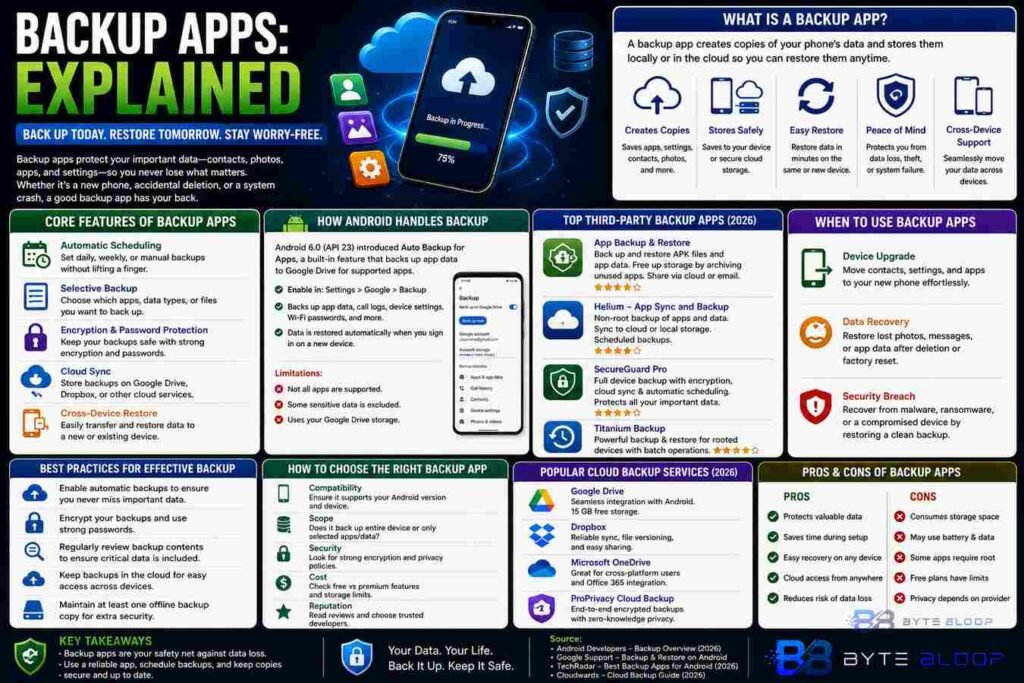
A backup app is software that creates copies of your phone’s data—app files, settings, contacts, photos, and more—and stores them either locally on the device or in the cloud. The goal is to enable quick restoration in case of data loss, device replacement, or system reset. Some backup apps focus on whole‑device snapshots, while others target specific app data or media files.
Core Features of Backup Apps
Most backup apps share a few key capabilities:
- Automatic Scheduling – Set daily, weekly, or manual backups without manual intervention.
- Selective Backup – Choose which apps or data types to include.
- Encryption – Protect backups with password or biometric locks.
- Cloud Sync – Store copies on services like Google Drive, Dropbox, or dedicated cloud providers.
- Cross‑Device Restore – Transfer data to a new phone with minimal effort.
How Android Handles Backup
Android 6.0 (API 23) introduced Auto Backup for Apps, a built‑in feature that automatically backs up app data to Google Drive for apps that support it. Users can access these settings via Settings > Google > Backup. However, Auto Backup has limitations: it excludes certain sensitive data, may not cover all third‑party apps, and consumes storage on the cloud account.
Popular Third‑Party Backup Apps
While Android’s native solution is convenient, many users opt for third‑party apps for added flexibility. Two notable examples are:
- App Backup & Restore – Available on Google Play, this app lets you back up and restore APK files and app data for non‑frequently used apps, freeing up phone storage. It offers a simple interface and the ability to transfer backups via email or cloud services.
- Helium – App Sync and Backup – A long‑standing favorite, Helium provides non‑root backup of app data and media. It syncs to cloud or local storage and supports scheduled backups.
When to Use Backup Apps
Backup apps shine in three main scenarios:
- Device Upgrade – Move contacts, settings, and app data to a new phone without manual re‑setup.
- Data Recovery – Restore lost photos or app data after accidental deletion or a factory reset.
- Security Breach – Quickly recover from malware or a compromised device by restoring a clean backup.
Best Practices for Effective Backup
To maximize the benefits of backup apps, follow these guidelines:
- Enable automatic backups whenever possible.
- Encrypt your backups and use strong passwords.
- Regularly review backup contents to ensure critical data is covered.
- Keep at least one offline backup copy for added security.
Choosing the Right Backup App
When selecting a backup solution, consider:
- Compatibility – Does it support your Android version and device?
- Scope – Does it back up only selected apps or the entire device?
- Security – Is encryption available and robust?
- Cost – Many apps offer free tiers; premium features may require a subscription.
Popular cloud backup services in 2026 include Google Drive, Dropbox, and specialized providers like ProPrivacy Cloud Backup, which offer dedicated Android protection with end‑to‑end encryption.
Key Takeaways
- Backup apps protect data from accidental loss and device failure.
- Android’s Auto Backup is convenient but limited; third‑party apps offer more control.
- Encryption and regular scheduling are essential for secure backups.
- Cloud sync enables quick restoration across devices.
- Keep an offline backup for maximum safety.
Frequently Asked Questions
What is a backup app?
A backup app creates copies of your phone’s data—apps, settings, contacts, photos—and stores them locally or in the cloud for easy restoration.
What features should I look for in a backup app?
Automatic scheduling, selective backup, encryption, cloud sync, and cross‑device restore are key features to consider.
When should I use a backup app?
Use it when upgrading devices, recovering deleted data, or protecting against malware and hardware failure.
What are the pros and cons of Android’s Auto Backup?
Pros: built‑in, automatic, no extra cost. Cons: limited to supported apps, may not back up all data, relies on Google Drive storage.
Conclusion
Based on the available information and industry analysis, backup apps provide a critical safety net for modern smartphone users by ensuring that app data, settings, and media are preserved and easily recoverable. By combining automated scheduling, encryption, and cloud synchronization, these tools enable seamless device transitions and robust protection against data loss, making them an essential component of any digital hygiene strategy.
Related Reading
- Top 5 Cloud Backup Services for Android in 2026