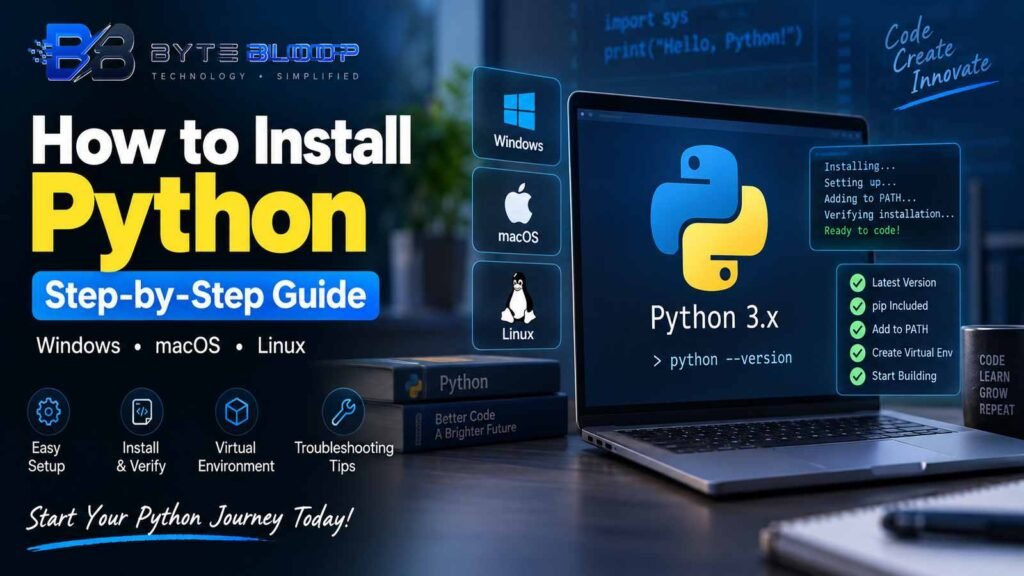
How to Install Python: Step-by-Step Guide
Introduction
Python has become the go‑to language for web developers, data scientists, and hobbyists alike. Its simple syntax, vast library ecosystem, and cross‑platform nature make it a versatile tool for building everything from small scripts to enterprise‑grade applications. Whether you’re setting up a local development environment or preparing a server for deployment, installing Python correctly is the first step toward a smooth workflow. This guide walks you through the process on Windows, macOS, and Linux, covering the most common pitfalls and best practices to keep your setup clean and reproducible.
Why a Proper Installation Matters
Installing Python from the official source ensures you receive the latest security patches, bug fixes, and performance improvements. It also guarantees compatibility with pip, virtualenv, and other ecosystem tools that manage dependencies and isolated project environments. Skipping these steps or using unofficial binaries can lead to broken packages, version conflicts, or security vulnerabilities.
Pre‑Installation Checklist
- Verify your operating system version (Windows 10/11, macOS 12+, Ubuntu 22.04+).
- Ensure you have administrative rights if you plan to install system‑wide.
- Back up existing Python installations or use a virtual environment to avoid clashes.
Installing Python on Windows
Windows users can take advantage of the Microsoft Store or the official installer. The Store method is quick but limits version control, while the installer offers more flexibility.
Using the Microsoft Store
- Open the Microsoft Store app.
- Search for “Python” and select the latest release (e.g., Python 3.15).
- Click Get and follow the prompts to install.
- After installation, open PowerShell and type
python --versionto confirm.
Using the Official Installer
- Navigate to python.org/downloads/windows and download the executable for your architecture.
- Run the installer. Important: check the box that says “Add Python to PATH” before proceeding.
- Choose “Customize installation” if you want to select optional features like pip, IDLE, or documentation.
- Finish the wizard and verify the installation with
python --versionin a new terminal window.
Installing Python on macOS
macOS ships with a system Python, but it’s best to install a newer version via Homebrew or the official installer to avoid interfering with system tools.
Homebrew Method
- Install Homebrew if you haven’t already:
/bin/bash -c "$(curl -fsSL https://raw.githubusercontent.com/Homebrew/install/HEAD/install.sh)" - Run
brew install pythonto download and install the latest Python 3.x. - Verify with
python3 --versionand setalias python=python3in your shell profile if desired.
Official Installer
- Download the macOS installer from python.org.
- Open the .pkg file and follow the installer steps.
- After installation, run
python3 --versionin Terminal.
Installing Python on Linux
Most Linux distributions include Python 3 in their package managers. However, the repository version may lag behind the official release.
Debian/Ubuntu
- Update package lists:
sudo apt update - Install Python:
sudo apt install python3 python3-pip - Verify with
python3 --version.
Fedora/CentOS
- Install Python:
sudo dnf install python3 python3-pip - Check the version.
Arch Linux
- Run
sudo pacman -S python python-pip.
Post‑Installation: Setting Up a Virtual Environment
Using virtual environments keeps project dependencies isolated and prevents version clashes. The venv module ships with Python 3.
- Create a project folder:
mkdir myproject && cd myproject - Initialize a virtual environment:
python -m venv .venv - Activate it:
source .venv/bin/activateon macOS/Linux or.venv\Scripts\activateon Windows. - Install packages with pip:
pip install requests.
Troubleshooting Common Issues
- PATH not set: Re‑run the installer and ensure the “Add Python to PATH” option is selected.
- Multiple Python versions: Use
py -3.15 -m pip install ...on Windows orpython3.15 -m pip install ...on macOS/Linux. - Permission errors: Prefix commands with
sudoon Linux/macOS or run the terminal as Administrator on Windows.
Best Practices for Long‑Term Maintenance
Regularly update Python and pip to stay secure: python -m pip install --upgrade pip and python -m pip install --upgrade python (where available). Keep a requirements.txt file for reproducibility and use pip freeze > requirements.txt to capture exact versions. Consider using pyenv on macOS/Linux for managing multiple Python releases side‑by‑side.
Key Takeaways
- Use the official installer or package manager for security and stability.
- Always add Python to PATH during installation to avoid command‑not‑found errors.
- Create virtual environments to isolate project dependencies and prevent version conflicts.
- Verify installations with <code>python –version</code> or <code>python3 –version</code>.
- Keep pip and Python updated to benefit from the latest features and patches.
Frequently Asked Questions
What is the recommended method to install Python on Windows?
For most users, downloading the official installer from python.org and selecting the option to add Python to PATH is the most reliable method. The Microsoft Store version is faster but offers less control over versions.
Why should I use a virtual environment?
Virtual environments keep project dependencies separate from the system Python, preventing package conflicts and making it easier to reproduce environments across machines.
Can I install multiple Python versions on the same machine?
Yes. On Windows, use the <code>py</code> launcher or install separate installers. On macOS/Linux, tools like <code>pyenv</code> or <code>conda</code> manage multiple versions side‑by‑side.
What common errors should I watch for during installation?
Common issues include PATH not set, conflicting Python versions, and permission errors. Re‑running the installer with the PATH option or using elevated privileges usually resolves these.
Conclusion
Based on the available information and industry analysis, installing Python correctly establishes a stable foundation for development, enabling secure, reproducible, and efficient workflows across platforms. By following the step‑by‑step procedures outlined above, developers can avoid common pitfalls, maintain clean environments, and focus on building robust applications.
Related Reading
- Mastering Virtual Environments: A Deep Dive into Python’s venv and pyenv