How to Use Docker: Step-by-Step Guide
Introduction
This guide covers how to use docker step-by-step guide in detail. Understanding how to use docker step-by-step guide helps readers make better, more informed decisions.
Docker has become the de‑facto standard for packaging applications, enabling developers to ship code with all its dependencies in a lightweight, portable container. By isolating an app from the host system, Docker eliminates the classic “it works on my machine” problem and accelerates deployment across environments. Whether you’re a seasoned engineer or a hobbyist, mastering Docker’s core concepts—images, containers, volumes, and Compose—opens doors to scalable microservices, reproducible CI pipelines, and efficient local development. In
this guide we’ll walk through every step you need to start containerizing a simple web app, from installing Docker Desktop to orchestrating multiple services with Docker Compose. We’ll also touch on best practices for image optimization, data persistence, and troubleshooting common pitfalls. By the end, you’ll have a solid foundation to build, run, and manage Docker containers in any environment. Understanding how to use docker step-by-step guide helps readers make better, more informed decisions.
1. Install Docker Desktop — how to use docker step-by-step guide
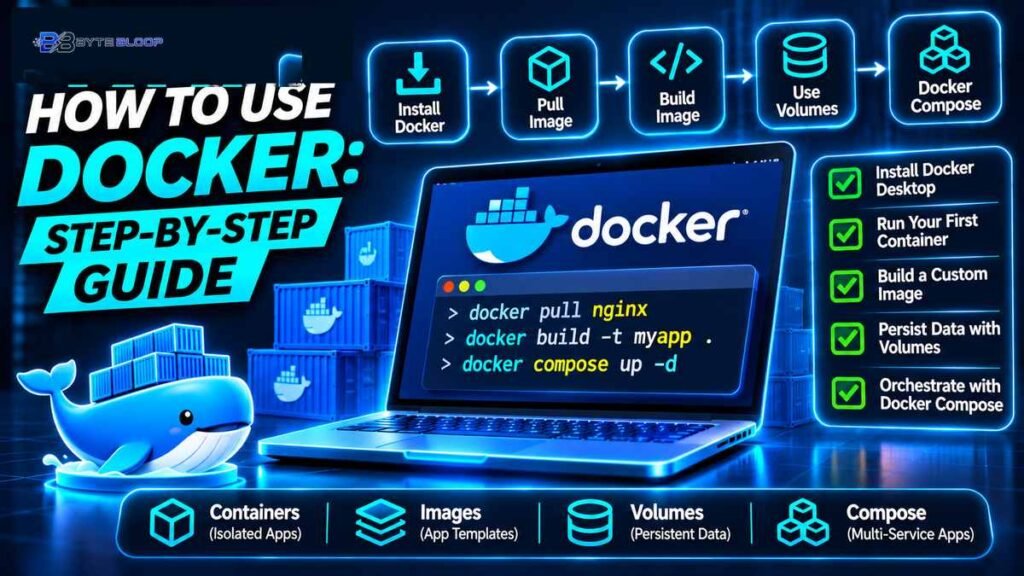
Begin by downloading Docker Desktop from the official Docker website. The installer automatically configures the Docker Engine, CLI, and Docker Compose. For Windows and macOS, a single executable is enough; Linux users can install the Docker Engine via their package manager (apt, yum, or dnf). After installation, run docker --version to verify the client is correctly installed. Docker Desktop also bundles a graphical dashboard, making it easy to monitor running containers and view logs. Understanding how to use docker step-by-step guide helps readers make better, more informed decisions.
2. Pull an Official Image
Docker images are read‑only templates that define an application’s runtime environment. The simplest way to start is to pull a pre‑built image from Docker Hub. For example, docker pull nginx:latest downloads the latest Nginx web server. Once pulled, you can launch a container with docker run -d -p 8080:80 nginx, exposing the server on port 8080 of your host. Open http://localhost:8080 to confirm the container is serving content. Understanding how to use docker step-by-step guide helps readers make better, more informed decisions.
3. Build Your Own Image
To create a custom image, write a Dockerfile that specifies the base image, copies source code, installs dependencies, and sets the entrypoint. A minimal example for a Python Flask app: Understanding how to use docker step-by-step guide helps readers make better, more informed decisions.
FROM python:3.11-slim
WORKDIR /app
COPY requirements.txt .
RUN pip install -r requirements.txt
COPY . .
CMD ["python", "app.py"]
Build the image with docker build -t myflaskapp . and run it using docker run -d -p 5000:5000 myflaskapp. This process demonstrates Docker’s build cache: only changed layers are rebuilt, speeding up iteration. Understanding how to use docker step-by-step guide helps readers make better, more informed decisions.
4. Persist Data with Volumes
Containers are transient; when they stop, their file system is discarded. Volumes provide durable storage that survives container restarts. Create a volume with docker volume create mydata and mount it: docker run -d -p 3306:3306 -v mydata:/var/lib/mysql mysql:latest. The database files now live on the host, allowing you to preserve data across deployments. Understanding how to use docker step-by-step guide helps readers make better, more informed decisions.
5. Orchestrate with Docker Compose
For multi‑service applications, Docker Compose simplifies configuration. Create a docker-compose.yml file defining services, networks, and volumes:
version: "3.9"
services:
  web:
    build: .
    ports:
      - "5000:5000"
    depends_on:
      - db
  db:
    image: mysql:latest
    environment:
      MYSQL_ROOT_PASSWORD: secret
    volumes:
      - db_data:/var/lib/mysql
volumes:
  db_data:
Run docker compose up -d to spin up both services. Compose automatically creates a dedicated network, enabling containers to communicate by service name.
6. Manage Container Lifecycle
Use docker ps to list running containers and docker logs <container> to view output. To stop a container, docker stop <container>; to remove it, docker rm <container>. For images, docker rmi <image> cleans up unused layers. Docker’s CLI offers powerful filtering and formatting options to keep your workspace tidy.
7. Best Practices and Tips
• Keep images small: start from minimal base images and delete build artifacts.
• Use multi‑stage builds to separate build-time dependencies from runtime.
• Tag images with meaningful versions (e.g., myapp:1.0.0) to avoid accidental “latest” pulls.
• Leverage Docker Hub or a private registry for CI/CD pipelines.
• Regularly prune unused images and containers with docker system prune to reclaim disk space.
Key Takeaways
- Install Docker Desktop and verify with <code>docker –version</code>.
- Pull official images or build custom ones using a <code>Dockerfile</code>.
- Use volumes to persist data beyond container lifecycles.
- Orchestrate multi‑service apps with <code>docker compose</code>.
- Apply best practices: minimal images, tagging, and regular pruning.
Frequently Asked Questions
What is Docker and why use it?
Docker is a platform that packages applications and their dependencies into containers, ensuring consistent behavior across environments and simplifying deployment.
What are Docker images and containers?
An image is a read‑only template; a container is a running instance of that image, isolated from the host system.
When should I use Docker Compose?
Use Compose for multi‑service applications that require networking, shared volumes, or coordinated startup.
What are the pros and cons of Docker?
Pros: portability, isolation, fast deployment, reproducibility. Cons: learning curve, overhead on resource‑constrained hosts, potential security risks if images are untrusted.
Conclusion
Based on the available information and industry analysis, Docker provides a robust, lightweight solution for packaging and deploying applications consistently across development, testing, and production environments. By following this step‑by‑step guide, developers can quickly adopt containerization practices, streamline CI/CD workflows, and reduce “works‑on‑my‑machine” headaches, ultimately accelerating delivery cycles and improving system reliability.
Related Reading
- Docker Compose Deep Dive: Advanced Networking and Secrets
Related Articles